This is the printable version of the Terrafold user guide: print it, or save it as a PDF, from your browser.

Terrafold
User guide
Model the house, design the garden: a course in modelling with Terrafold, step by step.
Contents
How to use this guide
This guide is a course. You learn Terrafold by doing: every chapter has steps to follow in the app, and the chapters build on each other. Read it from the start if Terrafold is new to you.
What you need
- Terrafold on your computer, or the web version in your browser. Everything in this guide works in the trial; see Licence, trial and viewer mode.
- A mouse with a scroll wheel. A trackpad works too, but orbiting and panning are quicker with a middle button.
- About an hour for the first three chapters, and a few evenings for the garden project.
How the chapters work
Each chapter starts with what you will learn, then takes you through numbered steps. Along the way you find four kinds of boxes:
The garden project
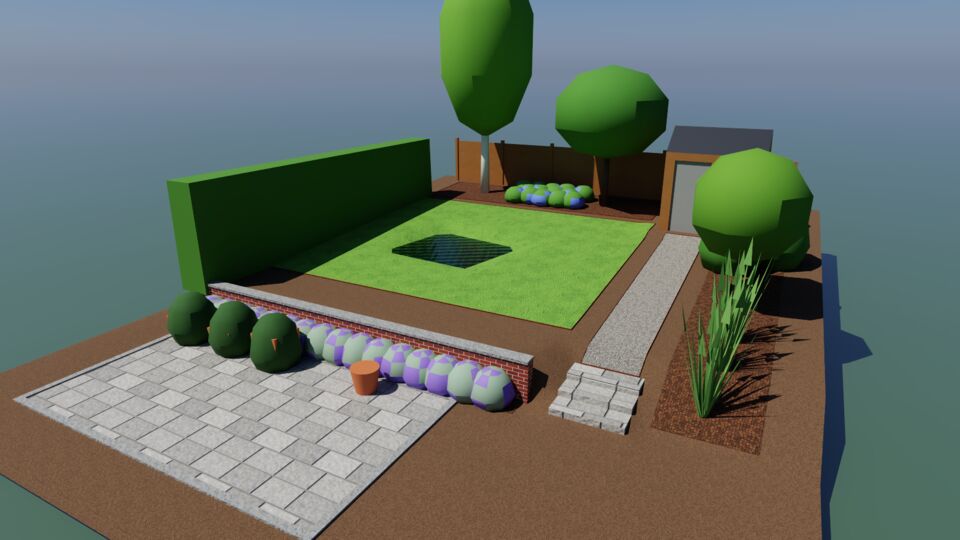
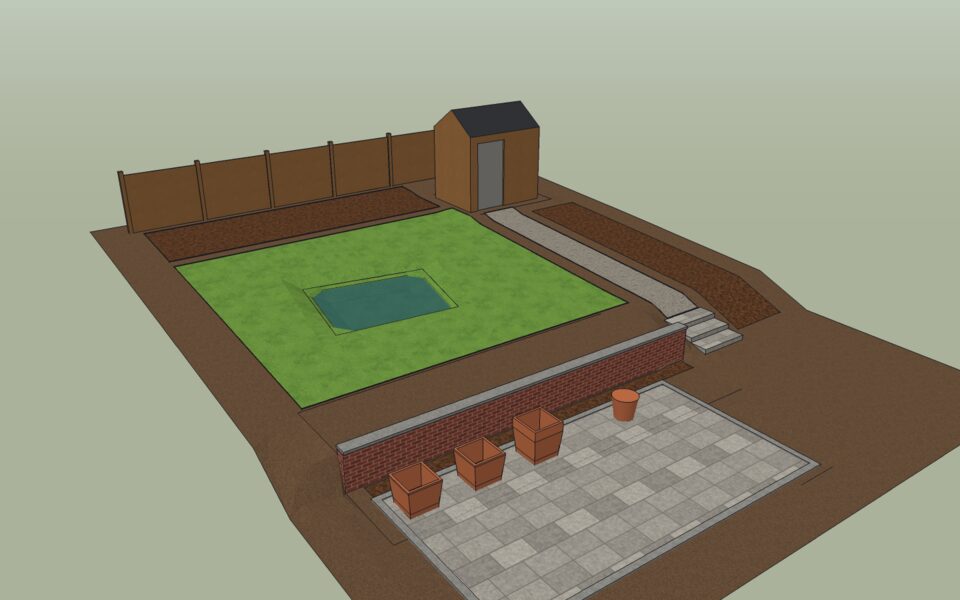
Chapters 1 to 3 use small practice models. From chapter 4 on, you build one design: a small back garden, 12 m wide and 16 m deep, that rises 1.2 m from the house to the back fence. By the end of chapter 11 it has a shed, a fence, a patio with planters, a retaining wall and steps, a gravel path, a lawn with a pond, planting beds and plants that grow over the years.
The models in the figures were made with the same commands you use, run from scripts, and every picture is Terrafold's own: screenshots of the app, exported views and path-traced renders. The diagrams were drawn for this guide.
Conventions
- Bold words are what you see on the screen: menus, buttons and panels. Tools ▸ Push/Pull means the Push/Pull item in the Tools menu.
- Keys look like Ctrl + Z. On macOS, use Cmd where the guide says Ctrl, and Option for Alt.
- Values in
codeare typed exactly as shown, such as2.4m,1.8m. - Lengths are in metres. If you prefer feet and inches, type them with their units (
8',6"); Terrafold converts.
The other chapters at the end
Appendix A is a printable card with every default shortcut, and appendix B sums up the whole way of working on one page. Print them and keep them next to your keyboard.
Chapter 1
The idea
Terrafold has very few kinds of things in it and a handful of rules. Learn the rules once and every tool behaves the way you expect. This chapter explains them before you draw anything.
Edges make faces
A Terrafold model is made of edges (straight lines between two points) and faces (flat surfaces bounded by edges). There are no boxes, cylinders or walls as separate object types. A box is six faces and twelve edges; a cylinder is a ring of faces with soft edges between them.
You never create a face directly. You draw edges, and as soon as edges close a flat loop, Terrafold fills it with a face. Take the face away (erase it) and the edges stay; erase an edge and the face it bounded goes too, because it is no longer closed.
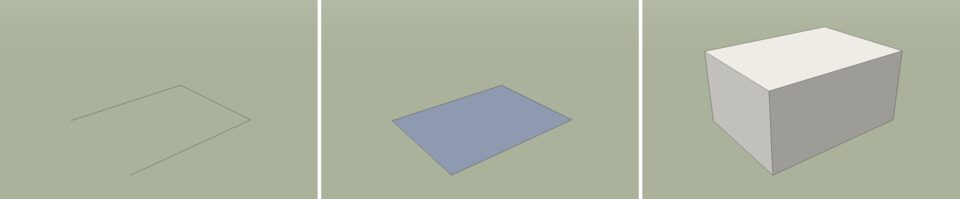
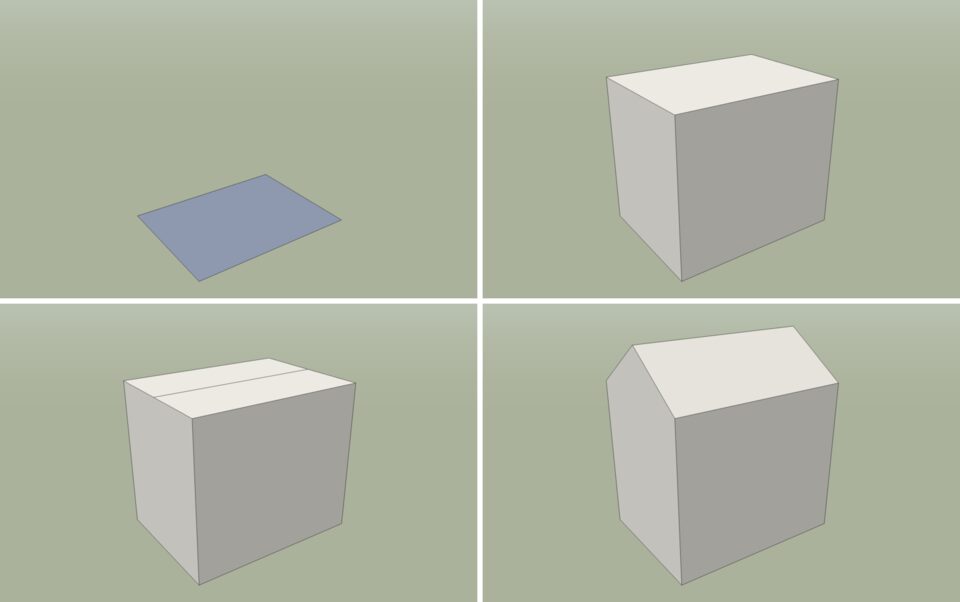
The face in the middle of Figure 1.1 is blue-grey because you see its back. Faces have a front and a back: a face drawn on the ground faces down, so from above you look at its back. When you pull it up into a box, every outer face turns its front outwards.
Faces become solids
The second idea is Push/Pull: click a face and move it along its normal (straight out of the face). Terrafold builds the sides for you. A rectangle becomes a box, a circle becomes a cylinder, a window outline drawn on a wall becomes a recess when you push it in.
This is how most things are modelled in Terrafold: draw a flat shape that is right, then pull it into 3D. The flat shape is easy to get exact, and the third dimension follows.
Geometry is sticky
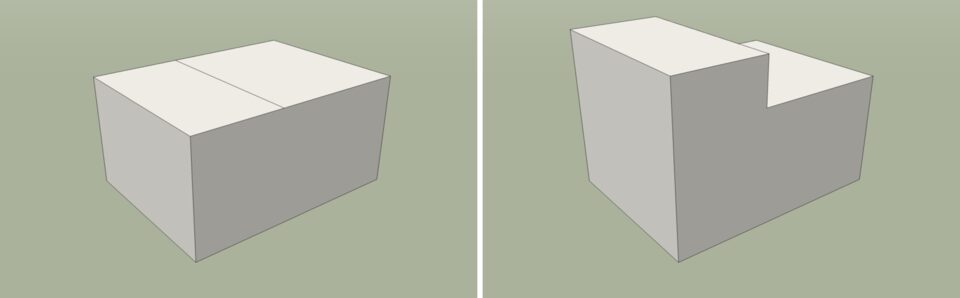
Edges and faces that touch become part of one surface. Where a line crosses a face, the face is split. Where two edges meet, they share their end point. Move a point, and every edge and face that uses it moves along.
Type exact values at any time
You draw with the mouse, but you don't have to aim. Whenever a tool needs a length, an angle or a size, the Measurements box at the bottom right of the window shows the current value, and you can type a new one. There is no need to click the box first: start typing and press Enter.
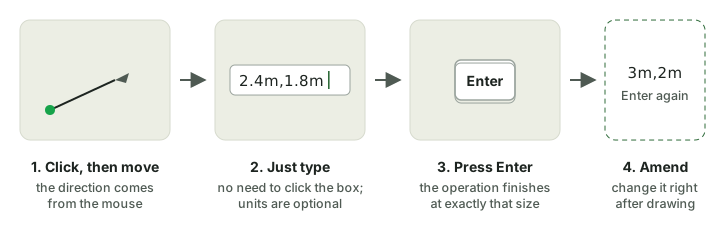
The mouse says which way; the numbers say how far. Move the pointer to show the direction (along the red axis, for example), then type 2.4 and press Enter. Right after an operation you can type again to change it: draw a rectangle, then type 3m,2m and it becomes 3 m by 2 m.
Everything is a command
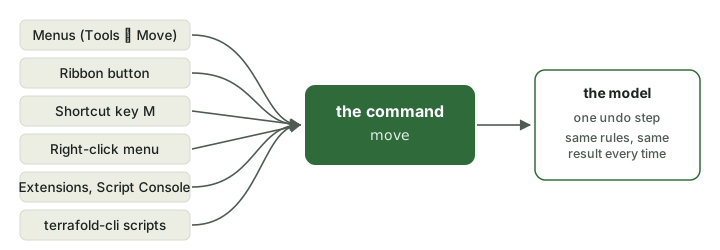
Every action in Terrafold is a command with a name: line, pushpull, move, garden_lawn. The menu item, the ribbon button, the shortcut key, the right-click menu, extension scripts and the command-line tool all run the same command in the same way.
Chapter 2
Getting around
Before you build anything, learn the window and how to look around a model. You will orbit, pan and zoom hundreds of times in every session, so make it a habit to do it with the mouse, without thinking.
The window
Start Terrafold. If the Welcome to Terrafold window opens, choose New model. The first time, Terrafold also shows the end user licence agreement; read it and choose I Accept.
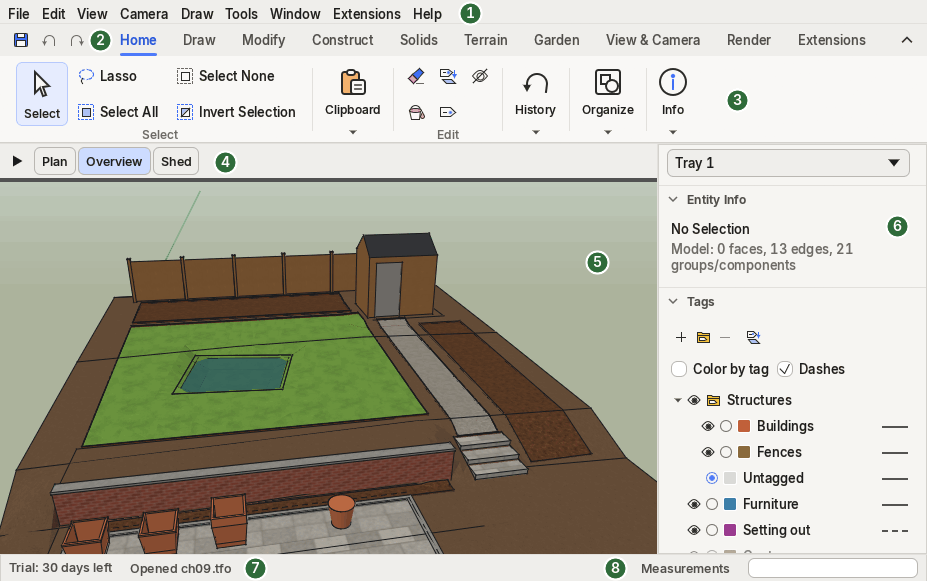
- The menu bar has every command, sorted by File, Edit, View, Camera, Draw, Tools, Window, Extensions and Help.
- The ribbon tabs: Home, Draw, Modify, Construct, Solids, Terrain, Garden, View & Camera, Render and Extensions. The small buttons on the left are the Quick Access bar (Save, Undo, Redo).
- The ribbon shows the commands of the chosen tab, in groups. Hover a button to see its name, its shortcut and, if it is greyed out, why.
- Scene tabs, when the model has scenes (chapter 6).
- The viewport: the model. The red, green and blue lines are the axes; they meet at the origin.
- The tray with panels such as Entity Info and Tags. Open more panels from Window ▸ Default Tray.
- The status bar says what the active tool expects next. Read it whenever you are unsure.
- The Measurements box shows lengths and angles while you work, and takes the values you type.
Context tabs and the collapsed ribbon
The ribbon changes with what you do. Select a group and a Group tab appears at the end of the strip; select terrain and you get Terrain tools; start a tool with options and an options tab shows them as toggles. These are context tabs: they appear when they apply and disappear afterwards.

When you want more room for the model, collapse the ribbon: double-click a tab, click the chevron at the right of the tab strip, or press Ctrl + F1. Only the tabs stay; click one to show its commands over the viewport.

Look around
You need three movements: orbit (turn around the model), pan (slide sideways) and zoom (move closer).
| Action | With the mouse | Tool and key |
|---|---|---|
| Orbit | drag with the middle button (the scroll wheel) | Camera ▸ Orbit, O |
| Pan | Shift + drag with the middle button | Camera ▸ Pan, H |
| Zoom | scroll the wheel; it zooms towards the pointer | Camera ▸ Zoom, Z |
| Recentre | double-click with the middle button on a point | |
| See everything | Camera ▸ Zoom Extents, Shift + Z |
Orbiting with the middle button works while another tool is active: you can turn the model half-way through drawing a line and carry on. That is why the mouse is the best way to navigate.
On a trackpad, pinch to zoom, drag with two fingers to orbit, and hold Shift while dragging with two fingers to pan.
Standard views
Camera ▸ Standard Views has Top, Bottom, Front, Back, Left, Right and Iso. For drawings, combine them with Camera ▸ Parallel Projection, which removes the perspective so that parallel lines stay parallel and lengths can be compared. Camera ▸ Perspective brings the perspective back.
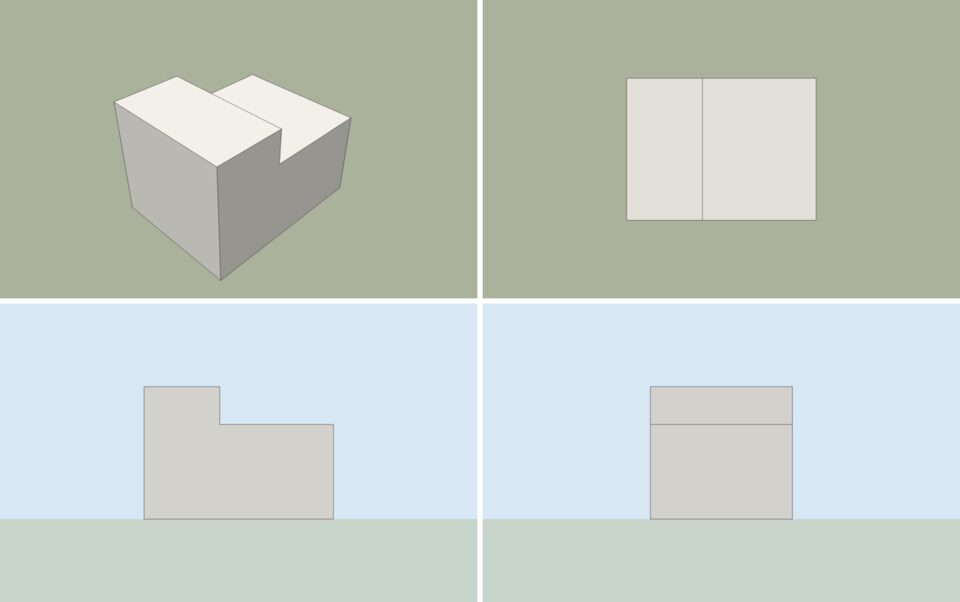
Camera ▸ Previous goes back to the view you had before, like the back button of a browser.
Units and the template
Each model has its own units. Open Window ▸ Model Info to see and change them: metres, centimetres, millimetres, feet or inches, and the precision Terrafold shows. You can always type a value in another unit (250mm, 8'): Terrafold converts it.
New models take their units from Window ▸ Preferences ▸ Template. If you always work in one unit, or always start with the same tags and styles, set up a model the way you like it and save it with File ▸ Save As Template. Choose it in Preferences ▸ Template to make it the default for new models.
Chapter 3
Drawing precisely
Terrafold models are exact: a 2.4 m wall is 2.4 m, not 2.398 m. You get there without a grid and without typing coordinates, through two things: inference, which snaps the pointer to what matters, and the Measurements box, which takes exact values.
Draw lines
- Choose Draw ▸ Lines ▸ Line, or press L.
- Click a start point.
- Move the pointer. A line follows it, and the Measurements box shows its length.
- Click to place the end point. The Line tool carries on from there; click again for the next segment.
- When the lines close a flat loop, a face appears and the tool stops. Press Escape to stop at any time.
To make a segment exactly 2 m long, move the pointer in the direction you want, type 2, and press Enter.
Inference: the pointer knows where it is
While you draw, Terrafold looks at what is under the pointer and snaps to it. A coloured marker and a tooltip tell you what it found.
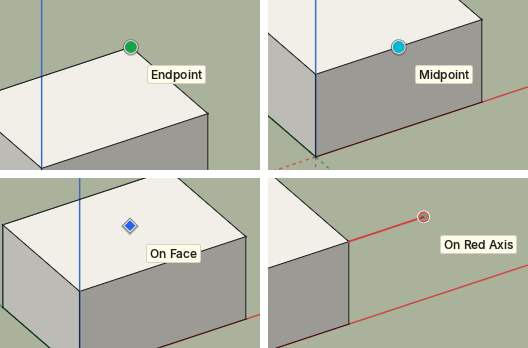
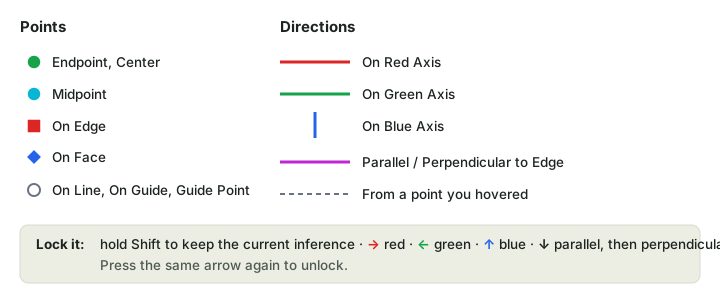
The most useful ones are:
- Endpoint (green) and Midpoint (cyan): the ends and middles of edges. Most of the time you start and end lines on these.
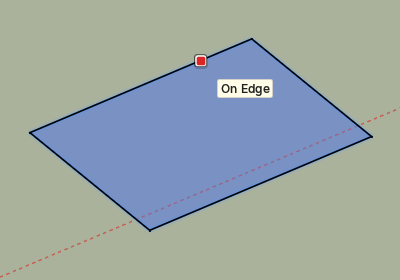
- On Edge and On Face: anywhere along an edge or on a face.
- On Red Axis, On Green Axis, On Blue Axis: the line runs parallel to an axis. The line itself takes the axis colour.
- Parallel to Edge and Perpendicular to Edge (magenta): hover over an edge first, then move in roughly the right direction.
Inference also works between things. Hover over a point for a moment, then move away along an axis: a dotted line shows that you are level with that point. That is how you draw a line that ends exactly in line with a corner elsewhere.
Lock a direction
Sometimes the inference you want is hard to keep while you move the pointer to where you want to click. Lock it:
- Hold Shift to keep the current inference while you move elsewhere.
- Press Right to lock the red axis, Left for green, Up for blue. Down locks parallel, then perpendicular, to the last edge you hovered. Press the same arrow again to unlock.
Draw rectangles
- Choose Draw ▸ Shapes ▸ Rectangle, or press R.
- Click the first corner.
- Move towards the opposite corner. The Measurements box shows the size as width and depth.
- Type both sizes separated by a comma, such as
2.4m,1.8m, and press Enter.
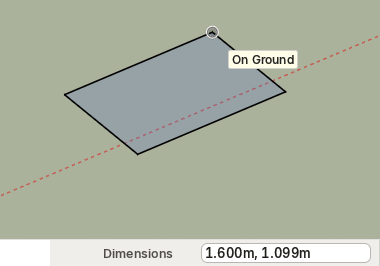
The direction of the pointer decides on which side of the first corner the rectangle goes; the numbers decide its size. A rectangle lies on the face you start it on, or on the ground. Hold Ctrl to draw it from its centre.
Measure and set out guides
Tools ▸ Tape Measure (T) measures and sets out.
- Click two points to measure the distance between them. The Measurements box shows it.
- Start on an edge and move away: a guide line parallel to the edge follows. Type a distance, such as
0.6, and press Enter to place it exactly that far away. - Start on a point and move: you get a guide point at the distance you type.
Guides are dashed construction lines. They are not part of the model's geometry, but the inference snaps to them, so they are perfect for setting out: put guides where things should go, then draw on them.
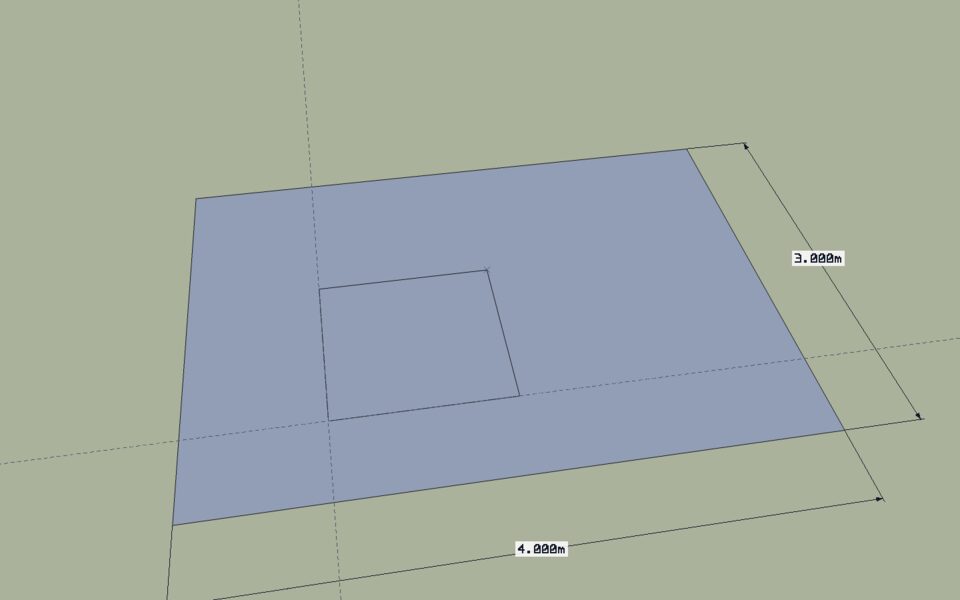
View ▸ Guides shows or hides guides; Edit ▸ Delete Guides removes them all when you are done.
Chapter 4
From flat to solid
Now you build real things. This chapter starts the garden project with a small shed, then makes a planter and a pot for the patio. Along the way you meet the tools that turn flat shapes into solids: Push/Pull, Offset, Move, Rotate, Scale and Follow Me.
The shed
Step 1: the floor plan
- Press R for the Rectangle tool.
- Click a first corner on the ground. Where exactly doesn't matter for learning; the project files have the shed 8.6 m along the red axis and 12.6 m along the green one, and you can always move it there later.
- Move the pointer up and to the right, type
2.4m,1.8mand press Enter.
Step 2: the walls
- Press P for Tools ▸ Push/Pull.
- Click the rectangle and move the pointer up.
- Type
2.1and press Enter. The rectangle becomes a box 2.1 m high.
Step 3 and 4: a pitched roof
- With the Line tool (L), draw a line across the top face from the Midpoint of one short edge to the Midpoint of the other. The top face splits in two.
- Press Space for the Select tool and click that line.
- Press M for Tools ▸ Move. Click the line, move straight up (the blue axis; press Up to lock it), type
0.6and press Enter.
The two halves of the top face fold into a roof, and the end walls grow into gables.
Step 5: the door
- Draw a rectangle on the front wall, starting at the bottom edge:
0.9m,1.9m. It splits the wall face. - Push/Pull it 5 cm into the wall: click it, move inwards, type
0.05, Enter.
Step 6: a window with a frame
- Draw a rectangle on the side wall, 0.7 m by 0.6 m.
- Choose Tools ▸ Offset (F), click the window face and move inwards. Type
0.05and press Enter. A second outline appears 5 cm inside the first: the frame. - Push the inner face (the pane) 3 cm in.
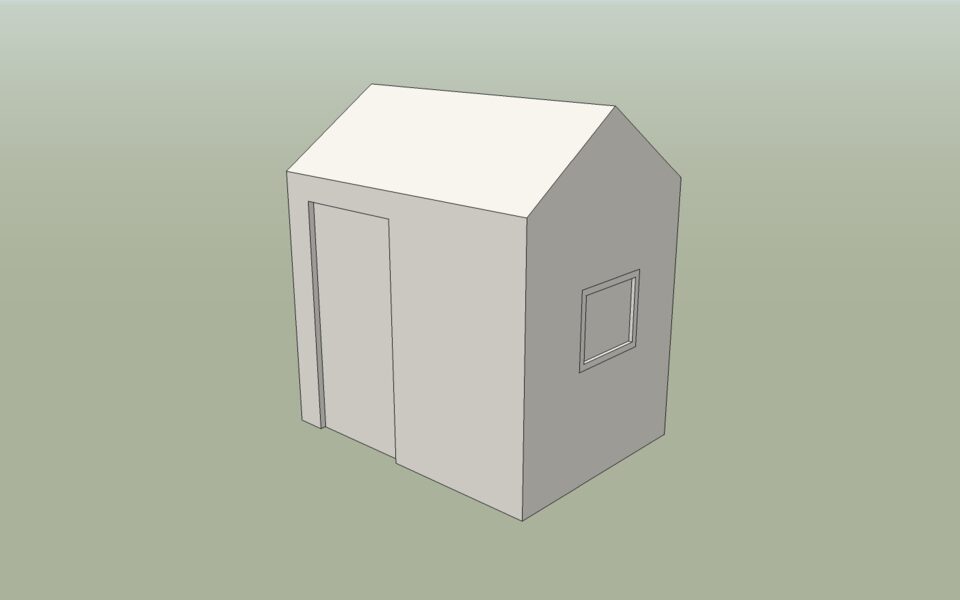
Offset copies the outline of a face at a constant distance, inwards or outwards. Use it for frames, rims, kerbs, borders and wall thicknesses.
A planter for the patio
Now a tapered planter, 50 cm square. You meet Scale here.
- Draw a
0.5m,0.5mrectangle near the house, and Push/Pull it up 0.5 m. - Select the top face. Choose Tools ▸ Scale (S). Grips appear around the selection.
- Hold Ctrl to scale about the centre, drag a corner grip outwards, type
1.2and press Enter. The top grows by 20 % and the sides lean outwards. - Offset the top face 4 cm inwards for the rim.
- Push the inner face down 0.4 m: the planter is hollow.
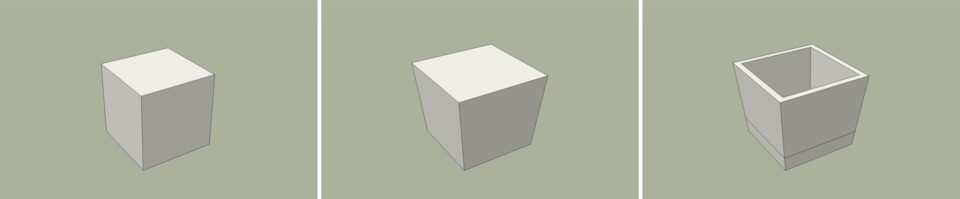
Scale takes a factor (1.2), a factor per axis (2,1,1), or a length. A negative factor mirrors.
A round pot with Follow Me
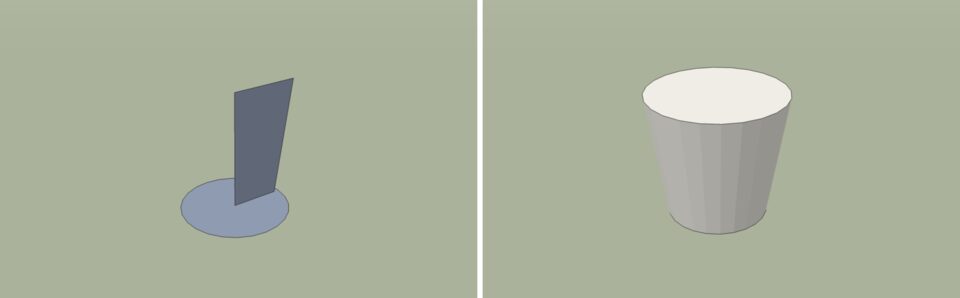
Follow Me sweeps a face along a path. With a circle as the path it makes a turned shape, like a pot or a column.
- Draw a circle on the ground (Draw ▸ Shapes ▸ Circle, C) with a radius of
0.2m. - Draw the pot's profile standing on the circle's centre, in a vertical plane: from the centre out to 18 cm, up and out to 25 cm at a height of 45 cm, and back to the axis. Lines that close the loop make a face.
- Select the circle's edge (a circle is one curve: one click selects it all).
- Choose Tools ▸ Follow Me and click the profile. It sweeps around the circle.
- Erase the circle face left on the ground.
Move, copy and arrays
Tools ▸ Move (M) moves the selection from one point to another. It is also how you copy:
- Press Ctrl (Option on macOS) once while moving to make a copy instead.
- Right after a copy, type
5xand press Enter: you get five copies, each the same distance further on. Type/5instead to spread five copies evenly between the original and the first copy. - You can still type a new distance afterwards; the array keeps its count.
Tools ▸ Rotate (Q) works the same way around a centre: click the centre, a starting direction and an end direction, or type an angle such as 45. With Ctrl it rotates a copy, and 6x makes six copies around the centre.
Chapter 5
Keeping models clean
So far everything you drew is loose geometry, and loose geometry sticks to whatever it touches. That was useful for folding the roof, but in a real project you want the shed, the planters and the fence to stay separate. This chapter explains why groups and components exist, and when to use which.
When stickiness gets in the way
Imagine you draw a compost bin against the side of the shed. Its side face lands on the shed wall and its edges join the wall's edges. Now move the bin away: the shared edges come along, and the wall is pulled out of shape. Triple-click the bin to select it, and you select the shed too, because everything connected is one surface.
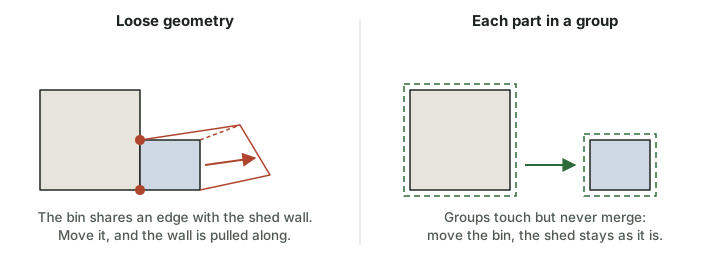
The fix is to wrap each separate thing in a group or a component as soon as it is finished. Geometry inside a group sticks only to other geometry in the same group.
Group the shed
- Press Space for the Select tool.
- Drag a selection rectangle from left to right around the whole shed. A left-to-right drag selects everything that lies fully inside it.
- Choose Edit ▸ Make Group.
- In Entity Info, type
Shedas the instance name.
Click the shed now and it is selected as one object, with a box around it. To change something inside, double-click it: you are in the group, the rest of the model fades, and you edit as before. Click outside it, or choose Edit ▸ Close Group or Component, to leave.
Groups and components
A component is like a group, with one difference that matters: copies of a component share their contents. The contents are the component's definition; each copy you place is an instance of it. Change the definition through any instance and all of them change.
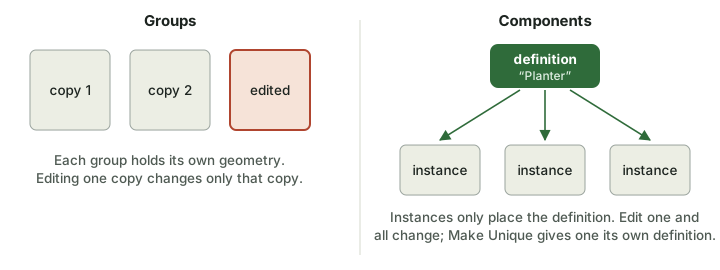
Use a group for a one-off: the shed, a wall, the terrain. Use a component for anything that repeats: planters, fence panels, posts, windows, chairs. Components also keep files small, because the geometry is stored once.
Planters as a component
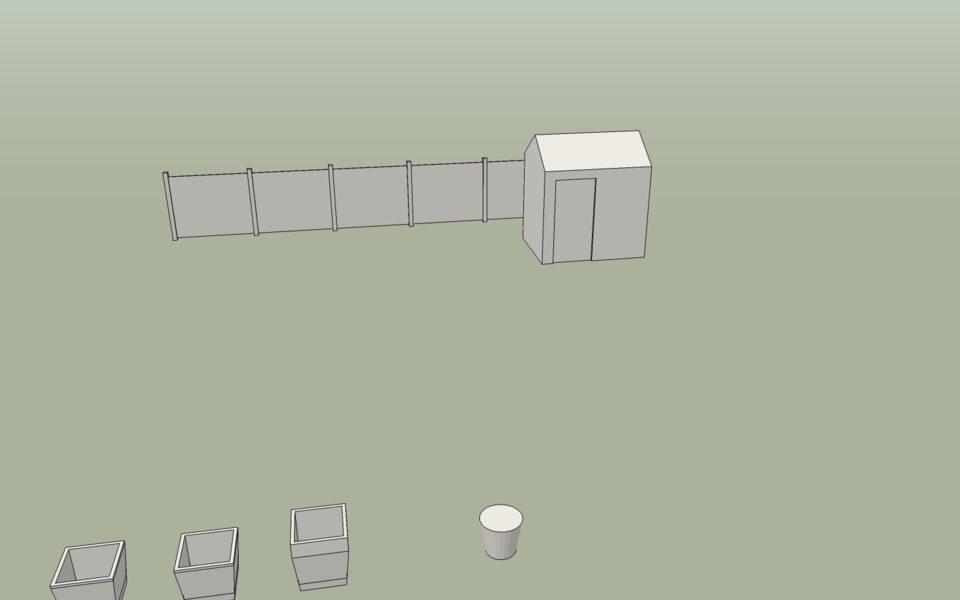
- Select the planter (drag around it) and choose Edit ▸ Make Component (G). Name it
Planter. - Move a copy 1.2 m to the right: Move (M), press Ctrl, click a corner, move along the red axis, type
1.2, Enter. - Type
2xand press Enter. You have three planters. - Make the pot a component too, named
Pot.
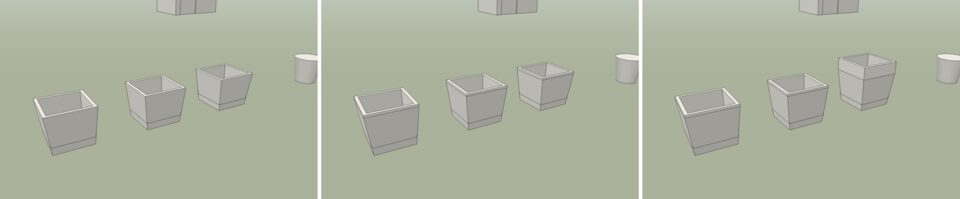
Now edit one planter: double-click it, Push/Pull its rim up 3 cm, and close it. All three get the taller rim.
Make Unique
Sometimes one copy should differ. Select the third planter and choose Make Unique on the Group context tab (or the button in Entity Info). It gets its own definition, called Planter#1. Edit it, push its rim up another 15 cm, and only that one changes.
Entity Info and the Outliner
Entity Info shows what is selected and lets you change it: for a component, its tag, material, instance name, definition name, how many instances there are, position, scale and buttons for Make Unique, Reset Scale and Options.
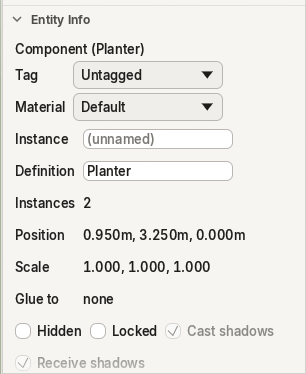
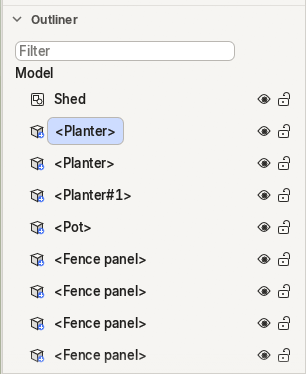
The Outliner (Window ▸ Default Tray ▸ Outliner) lists every group and component as a tree. Component instances show their definition in angle brackets. Click a row to select it, double-click to rename, use the eye to hide and the lock to protect it, and drag a row onto another to put it inside.
The fence
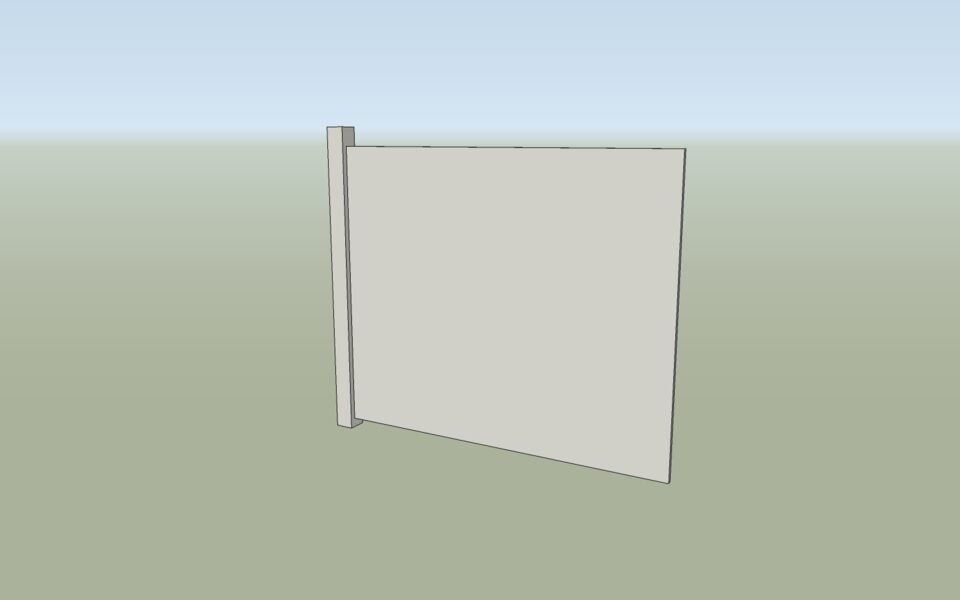
The back of the garden gets a fence of six panels, each a post and a board. You make one panel as a component and copy it.
- Draw a 10 cm by 10 cm rectangle at the left end of the back boundary and Push/Pull it up 1.65 m: the post.
- Draw the board as a rectangle standing against the post (start on the post's side face, it lies on that plane): 1.8 m wide, 1.5 m high, starting 5 cm above the ground. Push/Pull it 2 cm thick.
- Select the post and the board and make them a component named
Fence panel. - Move a copy 1.9 m along the red axis and type
5x.
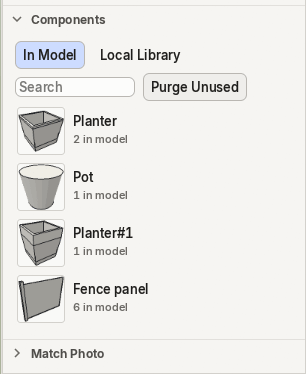
The Components panel (Window ▸ Default Tray ▸ Components) now lists Planter, Pot, Planter#1 and Fence panel with how many of each the model has. Click one, or drag it into the viewport, to place another instance.
Chapter 6
Organising
Groups and components keep geometry apart. Tags do something else: they sort things into sets that you can show, hide and colour, across the whole model. Scenes then remember a view together with which tags are visible. This chapter organises the project so that you can switch between a plan, an overview and a close-up in one click.
Tags, not layers
A tag is a label you put on an entity: the shed is on Buildings, the fence panels on Fences, the planters on Furniture. A tag doesn't move or change anything. It answers one question: should this be drawn right now? (Programs from the past called them layers; in Terrafold they are tags, because an entity is simply labelled, not stacked.)
Tag the project
Open the Tags panel (Window ▸ Default Tray ▸ Tags).
- Click + three times and name the tags Buildings, Fences and Furniture. Click each colour swatch and choose a colour.
- Select the shed and choose Buildings in the Tag row of Entity Info.
- Tag the fence panels Fences, and the planters and the pot Furniture. (Drag a selection rectangle from right to left across the fence: a right-to-left drag selects everything it touches, so all six panels at once.)
- Select Buildings, click the folder button to put it in a new tag folder, name it Structures, and drag Fences onto it too.
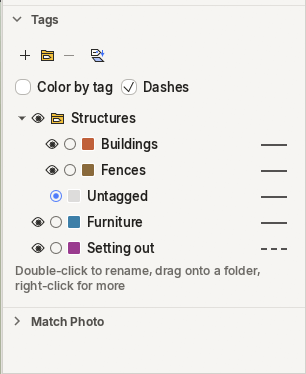
Each row has, from left to right: the eye (show or hide), the round button (make it the active tag), the colour, the name and the line pattern. A folder's eye hides everything in it at once.
The Tag tool
Tools ▸ Tag works like a paint bucket for tags: choose a tag on its options tab, then click things to put them on it. Ctrl+click tags everything connected, Alt+click picks up the tag of what you click. It is quicker than Entity Info when you tag many things one after the other.
The active tag, and dashed lines
Whatever you draw goes on the active tag. Make a tag active with its round button, draw, then make Untagged active again.
- Add a tag Setting out, and choose the dashed line pattern in its row.
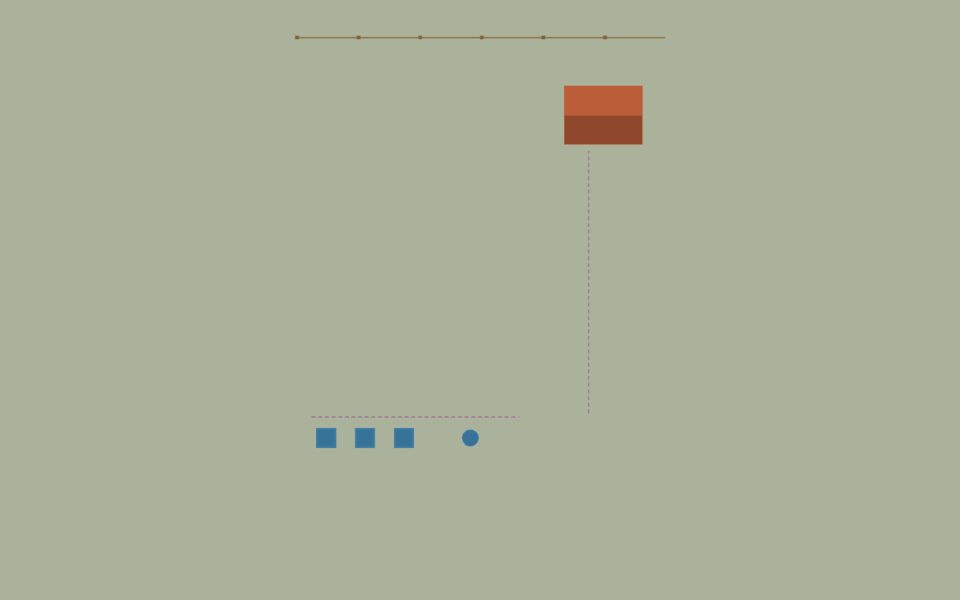
- Make it active and draw two lines on the ground: the front edge of the future patio, and the centre line of the path to the shed.
- Make Untagged active again.
The lines are drawn dashed, at the same size on screen at any zoom. Setting-out lines, existing features to be removed, boundaries and services are typical dashed tags.
Colour by tag
View ▸ Color by Tag draws every face and edge in its tag's colour instead of its material. It's a quick check of what is on which tag, and with Top view and Parallel Projection it makes a clear plan.
Hiding versus deleting
Hiding a tag doesn't remove anything: the geometry is still there, still counted, still saved. Bring it back with the eye. Deleting a tag doesn't delete its entities either: they become Untagged. To remove geometry, select it and press Delete.
You can also hide single entities with Edit ▸ Hide, and bring them back with Edit ▸ Unhide. View ▸ Hidden Geometry shows hidden things dimmed so you can select them.
Scenes
A scene is a saved way of looking at the model. It remembers the camera, which tags and folders are visible, hidden geometry, section planes, the style (including colour by tag), fog, shadows and the axes. It does not save the geometry: every scene shows the same model.
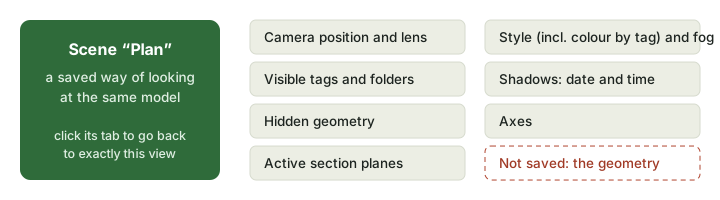
- Go to Top view with Parallel Projection and turn on Color by Tag. Choose View ▸ Animation ▸ Add Scene, and name it Plan in the Scenes panel.
- Turn colour by tag off, orbit to a view over the whole garden, and add a scene Overview.
- Zoom in on the shed and add a scene Shed.
Tabs for the scenes appear above the viewport (View ▸ Scene Tabs). Click one to go there, with a smooth camera move.
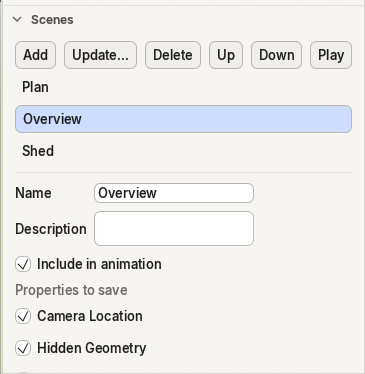
If you change a scene's view and want to keep it, click Update…: the scene takes the current view and settings.
Chapter 7
Materials and looks
Geometry says what a thing is; materials and styles say how it looks. They are separate on purpose: you can repaint a shed or switch the whole model to a sketchy pencil look without touching a single edge. This chapter paints the project and sets the sun.
The Paint Bucket
Choose Tools ▸ Paint Bucket (B). The Materials panel opens with the materials In Model. Switch to Library for Terrafold's own materials: colours, textures such as Wood, Brick, Concrete and Floor Tiles, physically based presets such as Brushed Steel, Glass and Water, and the garden materials. Click one to add it to the model and start painting with it.
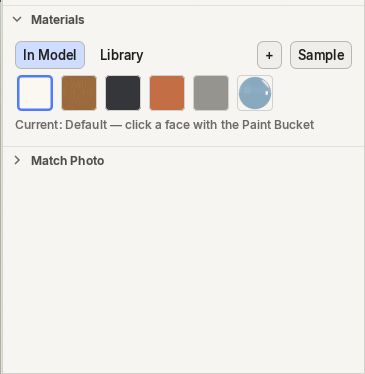
Then click faces to paint them:
- click paints one face;
- Ctrl+click paints all connected faces;
- Shift+click replaces a material everywhere it is used;
- Alt+click picks up the material of a face (a pipette).
Paint the project
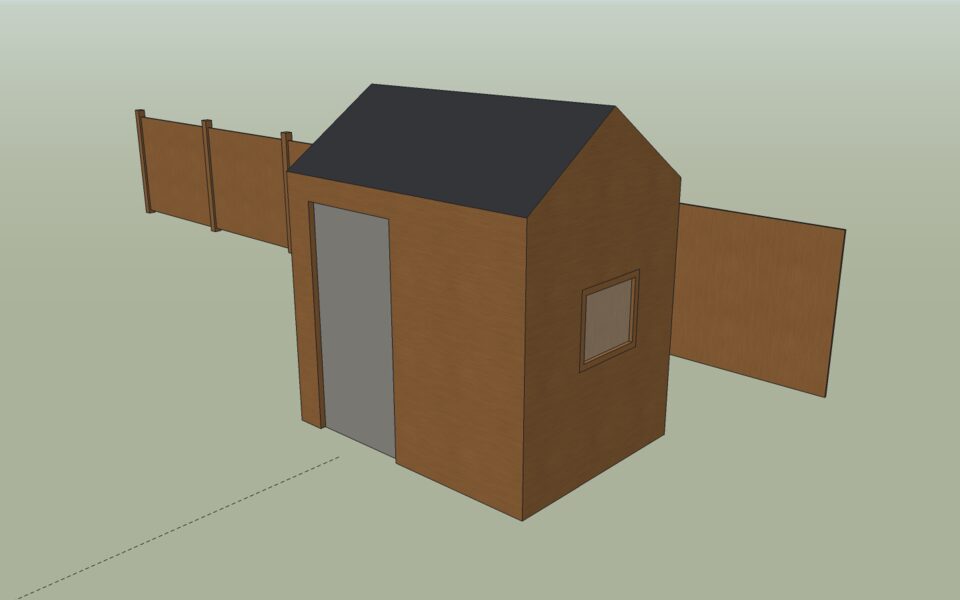
- Click Wood in the library, then click the shed group (not inside it). Every face inside the shed that has no material of its own takes Wood.
- Paint the fence panels Wood and the planters and pot Terracotta the same way: click the instances.
- Double-click the shed to go inside. Paint the two roof faces Charcoal, the door Stone Gray and the window pane Glass.
Textures and their position
A textured material, such as Wood, repeats an image across the face. Its size is part of the material (Edit tab of the Materials panel: the texture's width and height). Its position and direction belong to each face.
The shed's cladding should run vertically. The Position Texture command turns, moves and scales the texture on a face; as a tool you drag to move the texture, Ctrl-drag to rotate it and Shift-drag to scale it. In this version it has no menu item or button yet, so use Window ▸ Script Console: go inside the shed, select a wall, and run
run("texture_position", #{ face: selection()[0], rotation: 90 });
The texture on that wall turns a quarter turn. Repeat it for the other walls.
Styles: how the model is drawn
View ▸ Face Style changes how faces are drawn, without changing the model:
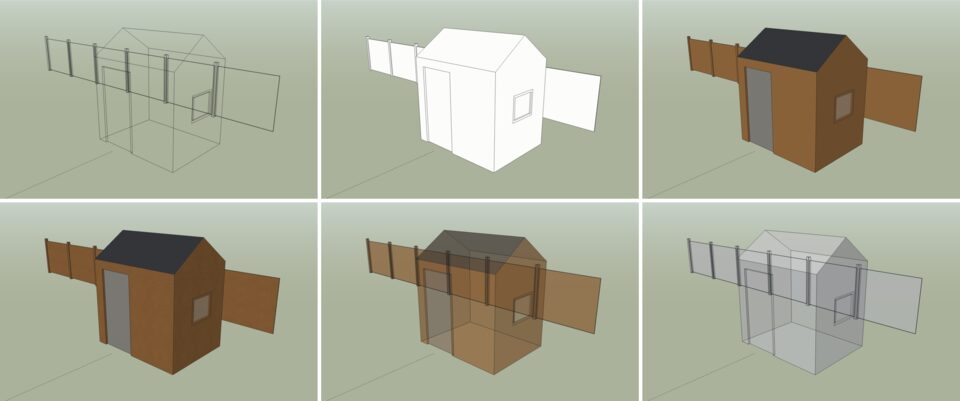
View ▸ Edge Style adds Back Edges (hidden edges dashed), Profiles (thick outlines), Depth Cue and Extension. The Styles panel saves all of these together, with the background and the edge colour, as a style. Terrafold comes with a few, such as Pencil Study, Blueprint and Clay Model.
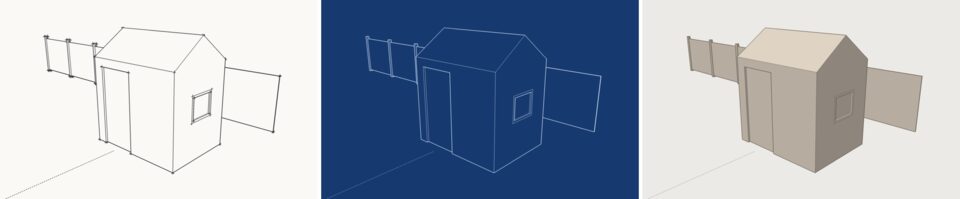
A style belongs to the model, and scenes remember which one they use. Make a scene for presenting (textures, shadows) and one for checking (monochrome, back edges).
Sun and shadows
Shadows come from a real sun: Terrafold works out its position from where the model is and the date and time.
- Set the location with File ▸ Geo-location ▸ Add Location…. For the project: latitude 51.05, longitude 3.72 (Ghent), time zone +1.
- Open the Shadows panel (Window ▸ Default Tray ▸ Shadows), set the date to 21 June and the time to 16:00.
- Turn shadows on with View ▸ Shadows.
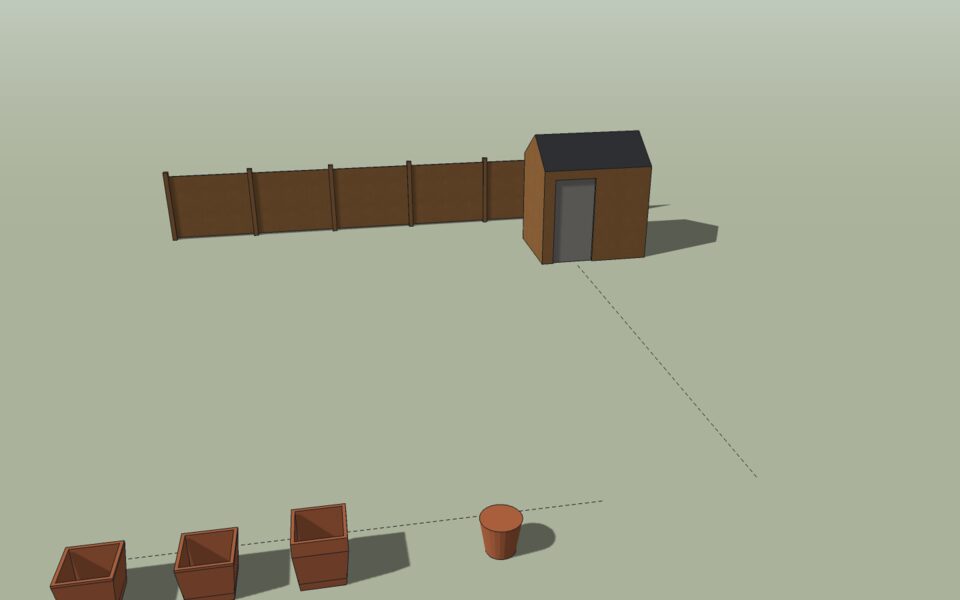
Shadows are worth checking early in garden design: where the shed throws its shadow is where shade-loving plants go.
View ▸ Fog fades the distance into the background colour (the Fog panel sets where it starts and ends). Useful for large sites, and for a soft look in presentations.
Chapter 8
The ground
Gardens are rarely flat. Our plot rises 1.2 m from the house to the back fence, and the shed, the patio and the lawn each need level ground. In this chapter you build the terrain from survey contours, grade level pads into it, and read the cut and fill numbers.
Terrain from contours
A survey of a garden usually comes as contour lines: lines that join points of equal height. Terrafold stretches a surface over them.
- Select all the contour lines.
- Choose Draw ▸ Sandbox ▸ From Contours.
- Hide the Contours tag: the lines are no longer needed, but keep them.
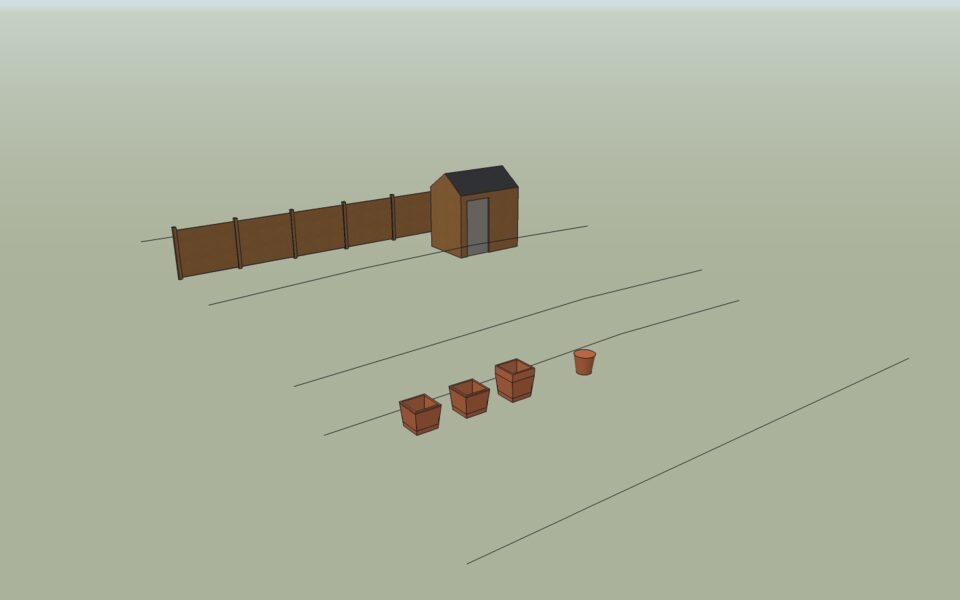
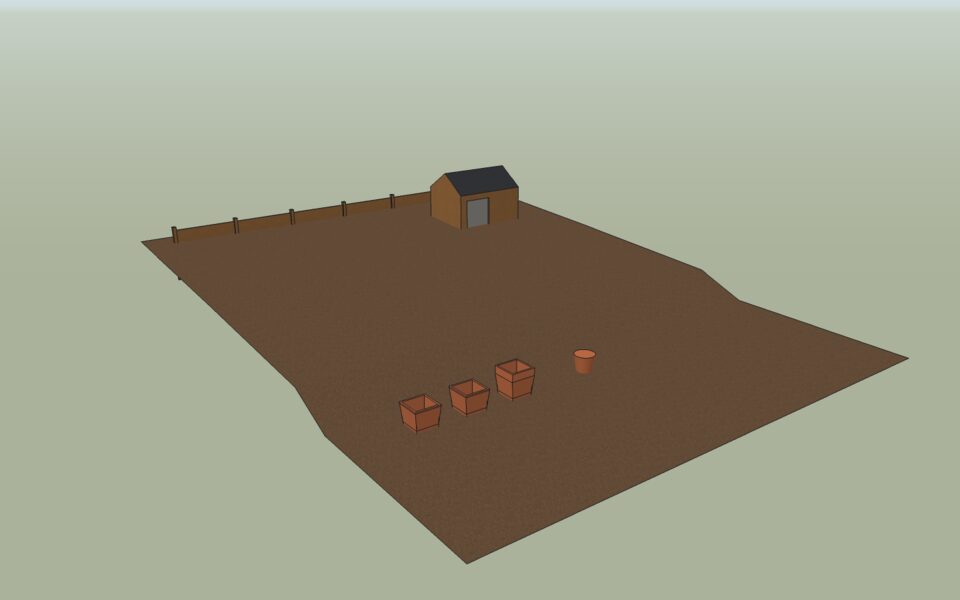
The terrain is a group of triangles. Paint it (Soil from the library), and it will show through wherever you don't lay something on top.
The other way to start is Draw ▸ Sandbox ▸ From Scratch: a flat grid of a given size and spacing, which you then shape with the brushes (below). Use it when there is no survey, or for a quick sketch.
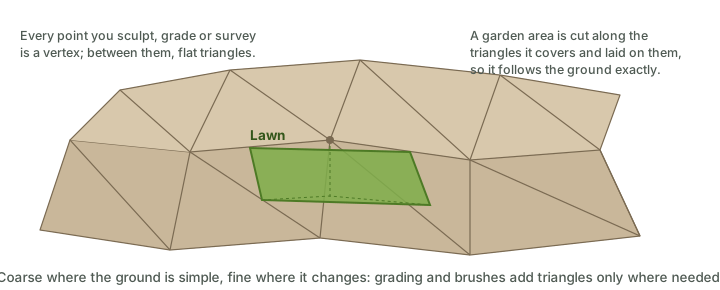
Why terrain is a TIN
Terrafold's terrain is a TIN, a triangulated irregular network: points at their real heights, joined by flat triangles. It is not a grid of heights, and it is not a smooth surface.
Grade a level pad
Tools ▸ Garden ▸ Grade Terrain makes a pad: a flat or evenly sloped area, with the ground around it sloping back to the existing level at a batter.
The shed needs a level base, 30 cm larger than the shed on every side.
- Choose Tools ▸ Garden ▸ Grade Terrain. Before clicking, type
1:2and press Enter: the batter, 1 up for 2 across. - Click the four corners of the pad around the shed's position, and close the outline by clicking the first point again (or press Enter).
- Move up or down to set the pad's height and click, or type how much to raise it (
0.1m, or-0.1mto lower it) and press Enter. In the project files the pad is level at 1.05 m above the patio.
Do the same for the patio by the house: a pad 6.8 m by 4 m, level at 0.
To slope a pad, type a height and a gradient: 0.3m,2% raises it 30 cm and slopes it 2 % along its first edge, for drainage.
Cut and fill
Every grading records how much soil is dug out (cut) and how much is brought in (fill). Terrafold computes them from the terrain before and after, triangle by triangle.
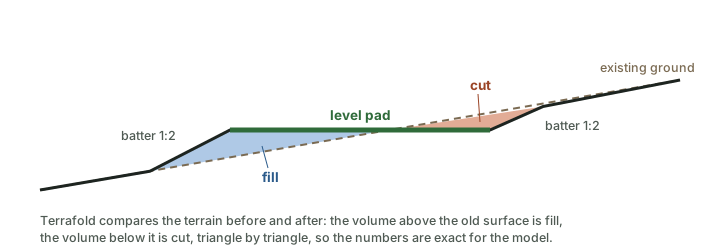
| Pad | Area | Cut | Fill |
|---|---|---|---|
| Shed, level at 1.05 m | 7.2 m² | 0.13 m³ | 0.25 m³ |
| Patio, level at 0 m | 27.2 m² | 0.99 m³ | 0.02 m³ |
Each grading is stored with the terrain, and the quantity report adds them up over the whole project (next chapter).
Put the buildings on the ground
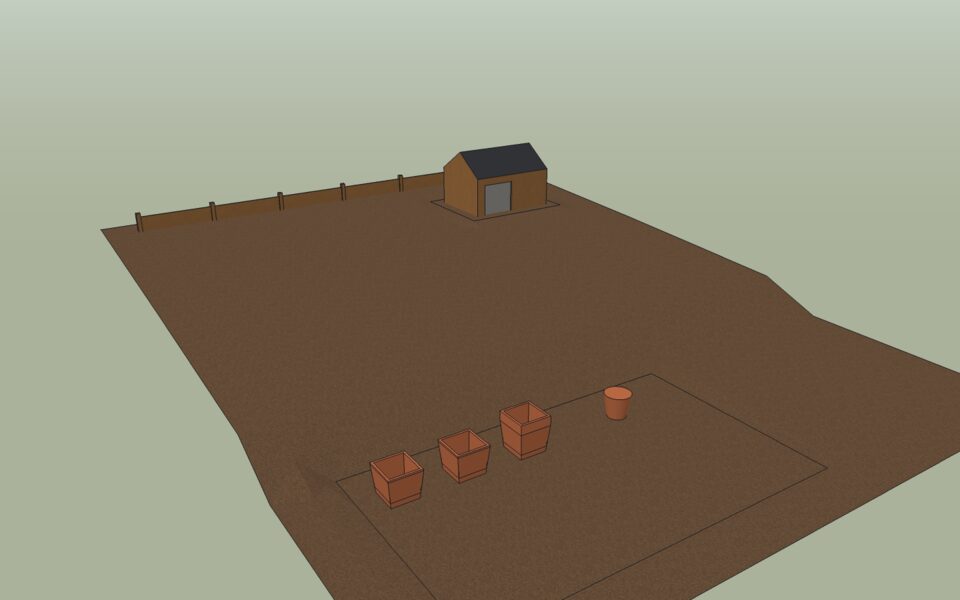
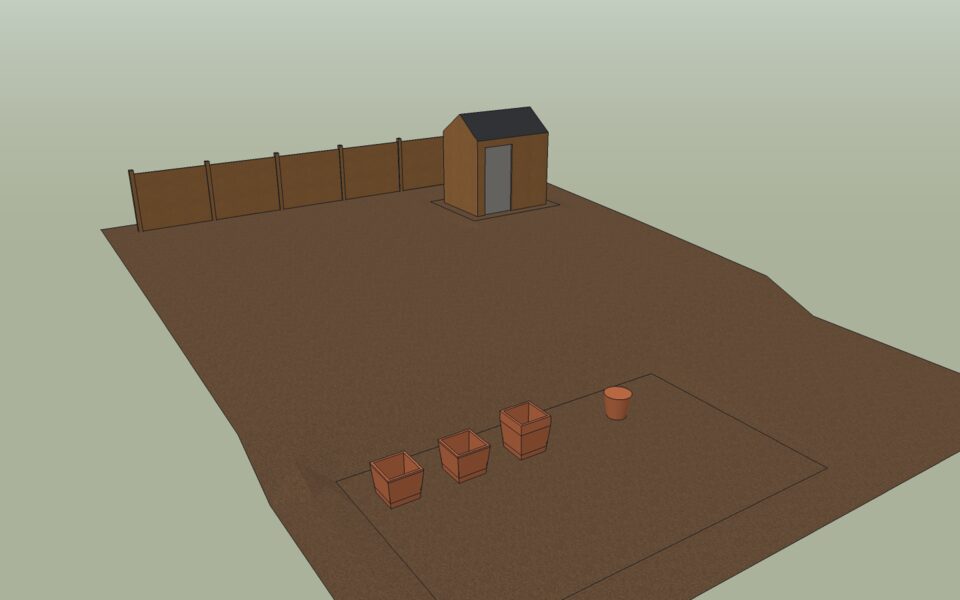
The shed and the fence were drawn at height 0, before there was any terrain. Now lift them:
- Select the shed, start Move (M), click a corner, press Up to lock the blue axis, type
1.05and press Enter. - Select the six fence panels and move them up
1.12m, so the posts stand just into the ground at the back.
Select the terrain and the green Terrain tools context tab appears with the Sandbox tools and grading.

Sculpt by hand
The brushes in Tools ▸ Garden ▸ Sculpt paint changes onto the ground: press and drag over the terrain, and the stroke is one step of Undo. Type radius,strength to change the brush.
- Raise / Lower builds mounds or hollows (a negative strength lowers).
- Level flattens to the height under the first point, or one you type.
- Smooth evens out bumps.
- Relief and Relief in Area add natural unevenness.
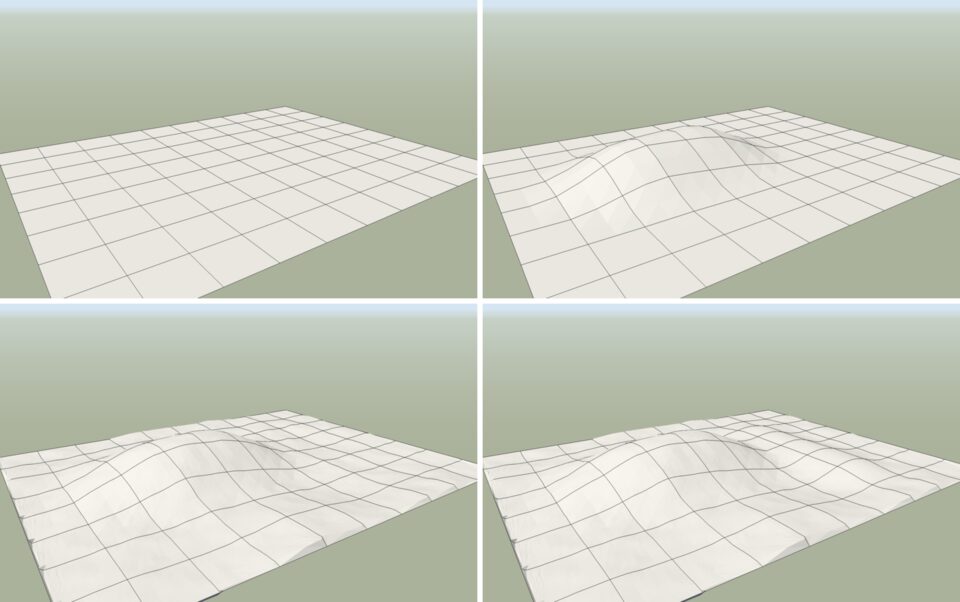
Where the triangles are too coarse for the brush, Terrafold refines them first. Every stroke also records its cut and fill.
Chapter 9
Hardscape and water
With the ground in place, the hard parts of the garden go on top: a patio, a retaining wall, steps, a gravel path, a lawn, planting beds and a pond. Each one is drawn as an outline or a path on the terrain, and Terrafold works out the rest: it follows the ground, grades where it must, and keeps count of areas and volumes.
The Garden tab
All these tools are on the Garden ribbon tab and in Draw ▸ Garden.

They all work the same way: click points on the terrain, then close the outline (click the first point again, double-click, or press Enter). While you draw, Backspace removes the last point and Escape starts over. Typed values set the options: a length for the thickness or width, a word for a kind.
The patio
- Choose Draw ▸ Garden ▸ Patio.
- Type
kerband press Enter to give it a kerb edge. - Click the four corners on the patio's pad, 20 cm inside its edge, and close the outline.
The patio is a 60 mm slab of Paving Slabs laid on the pad, with a 125 mm kerb around it. It is a group that knows it is a patio: select it and the Garden element context tab shows its type and area.
The retaining wall and the steps
Behind the patio the ground rises steeply. A wall holds it back, and steps lead up beside it.
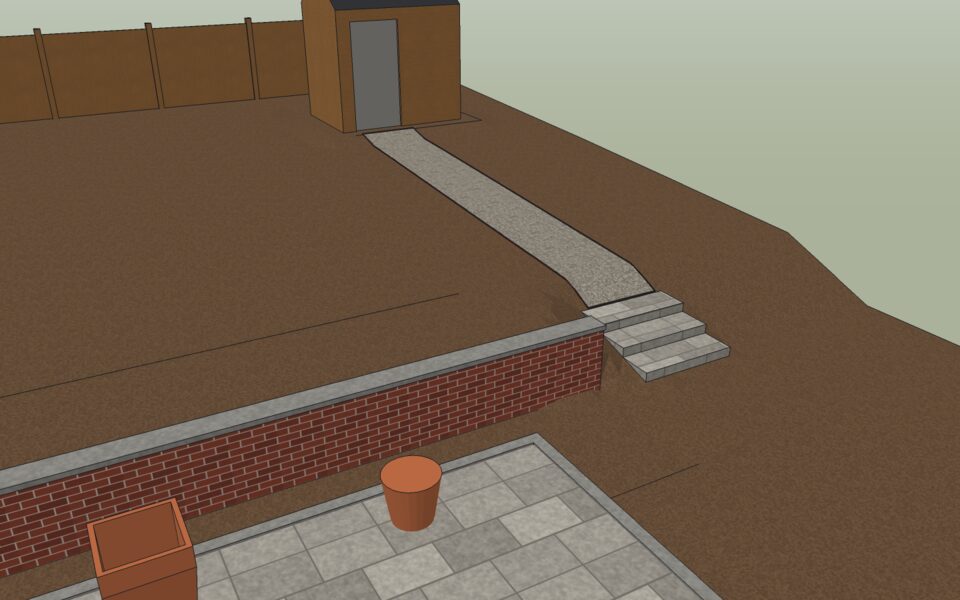
- Choose Draw ▸ Garden ▸ Retaining Wall, click its start and end along the foot of the bank, and press Enter. Terrafold builds the wall on the low side, levels 1.5 m of ground behind it, and sets the wall's height to the difference in level plus 10 cm, with a footing below and a cap on top.
- Choose Draw ▸ Garden ▸ Steps. Type
1.2for the width. Click the bottom of the slope at the patio, then a point at the top, and press Enter.
Terrafold divides the rise into steps close to 150 mm high, with treads of at least 280 mm, and grades the terrain to the flight. If the proportions are uncomfortable it says so.
- Choose Draw ▸ Garden ▸ Path, draw the path from the top step to the shed's pad, 1 m wide, and paint it Gravel. Type
steelbefore closing it for a steel edge.
The pond and the lawn
Dig the pond first, then lay the lawn around it.
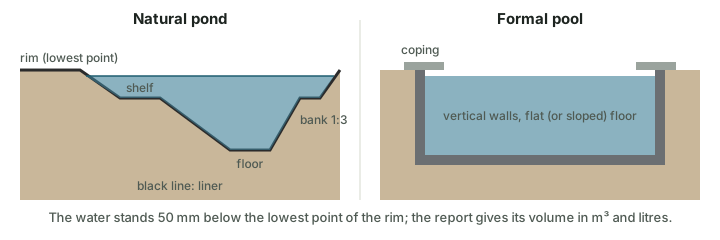
- Choose Draw ▸ Garden ▸ Pond (a natural pond; type
formalto switch to a pool, or a length to change the depth). - Click the corners of the pond in the upper garden and close the outline.
Terrafold digs the basin: sloping banks, a planting shelf, a flat floor and a liner, with the water 50 mm below the lowest point of the rim. Draw ▸ Garden ▸ Pool makes a formal pool instead, with vertical walls and coping.
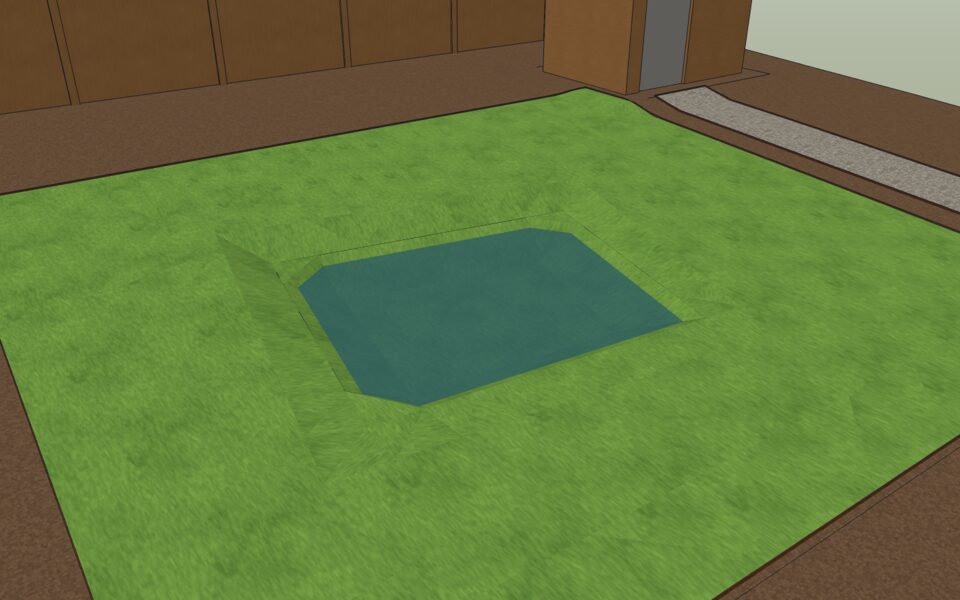
- Choose Draw ▸ Garden ▸ Lawn, type
steel, and draw the lawn over the whole upper level, around the pond. The lawn drapes into the pond's banks and stops at the water.
Planting beds
Draw ▸ Garden ▸ Planting Bed draws a bed with 50 mm of Bark Mulch. The project has three: a narrow strip below the wall, the bank beside the steps, and a border along the back with a steel edge.
The quantity report
Every area, edge, wall, flight of steps and pond keeps its quantities. Tools ▸ Garden ▸ Quantity Report adds them up, and File ▸ Export ▸ Garden Quantities saves them as a CSV file next to the model, ready for a spreadsheet or a quote.
| What | Quantity |
|---|---|
| Patio: plan area, slab volume | 21.8 m², 1.31 m³ |
| Path: plan area, volume | 6.9 m², 0.34 m³ |
| Planting beds (3): plan area, mulch | 29.3 m², 1.46 m³ |
| Lawn: plan area, surface area | 54.6 m², 55.4 m² |
| Edging: steel, kerb | 64.9 m, 19.6 m |
| Earthworks: cut, fill, net | 3.33 m³, 3.62 m³, +0.28 m³ |
| Retaining wall: length, face area, greatest height | 7.8 m, 5.7 m², 0.73 m |
| Steps: risers, length | 3, 1.2 m |
| Pond: water volume, water area, liner | 874 litres, 6.2 m², 7.8 m² |
The lawn's surface area is larger than its plan area because it slopes and dips into the pond's banks: order turf by the surface area.
Chapter 10
Planting
A garden is mostly plants, and plants change: they grow for years and look different every season. Terrafold's plants know that. You place species from a library, and the model shows them at any age and in any month, in 3D and as plan symbols, and counts them for the nursery.
The Plants panel
Open Window ▸ Default Tray ▸ Plants. At the top is the garden time (years after planting and the month), then whether to show 3D plants or Plan symbols, the Schedule… button, and the library of 68 species: trees, shrubs, hedges, perennials, grasses and groundcovers.
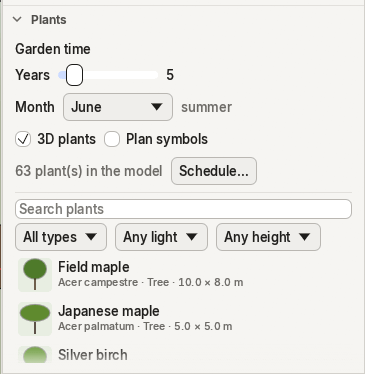
Search by common or botanical name, or filter by type, light and mature height. Hover a plant to see its size, growth rate, spacing, light, hardiness and flowering months. Click it to choose it: the Plant tool starts.
Place plants
Draw ▸ Garden ▸ Plant has three modes. Press Alt to go from one to the next, or choose the Mode on the Plant options tab.
- Single: click to place one plant.
- Row: click the start and the end; plants go in at even spacing. Hedges turn to follow the row.
- Area: click the corners of an area and close it; it fills with plants on a staggered grid, with a little natural variation.
The spacing starts at the species' planting distance. Type a length (50cm) to change it; type it right after a row or area and Terrafold replants it at the new spacing.
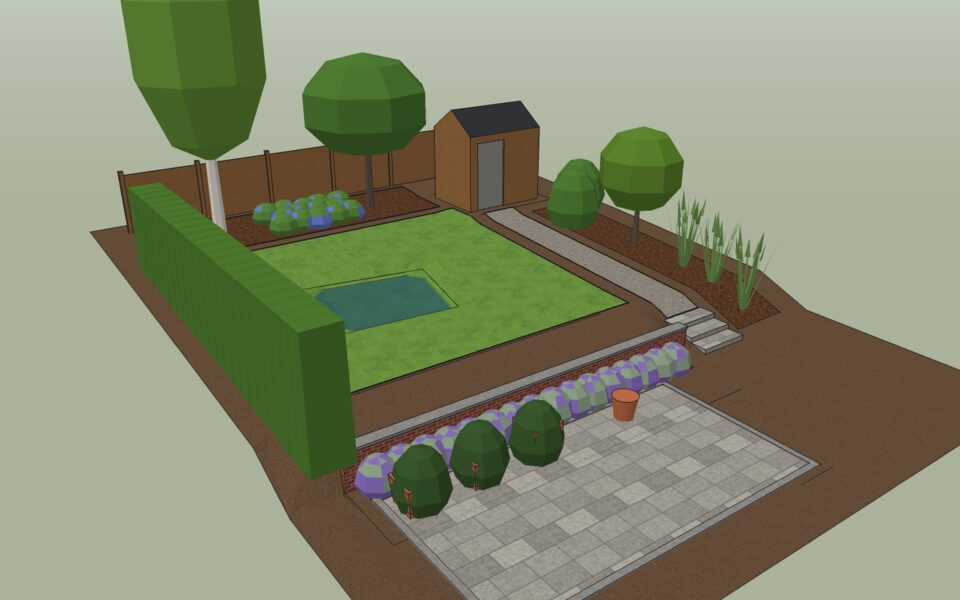
Garden time
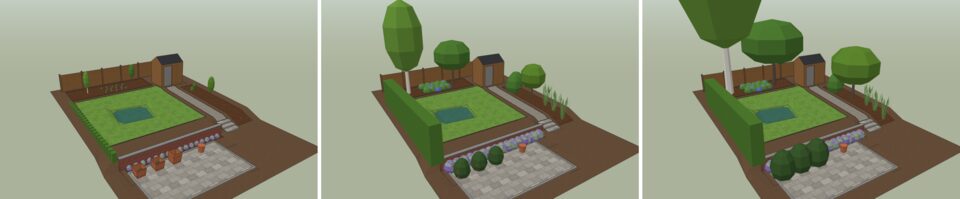
The model has a garden time: years since planting and a month. Set it in the Plants panel or with the Year and Month controls on the Garden tab. Each plant starts at a nursery size and grows towards its mature size, quickly at first and then slower.
Seasons
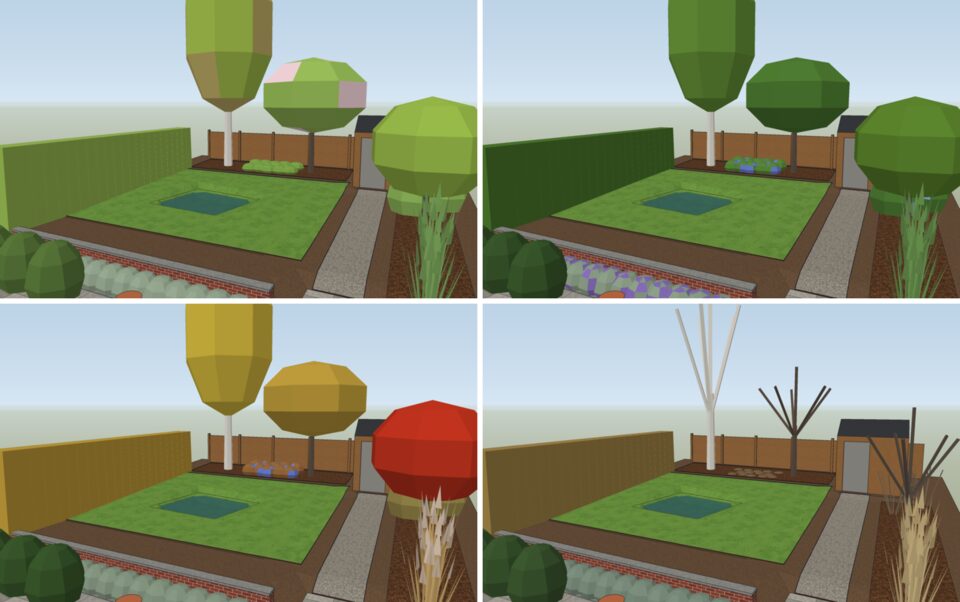
Change the month and the plants follow the seasons: fresh green in spring, darker in summer, colours in autumn, bare branches in winter (hornbeam hedges keep their dry leaves). In their flowering months, part of the crown takes the flower colour.
The planting plan
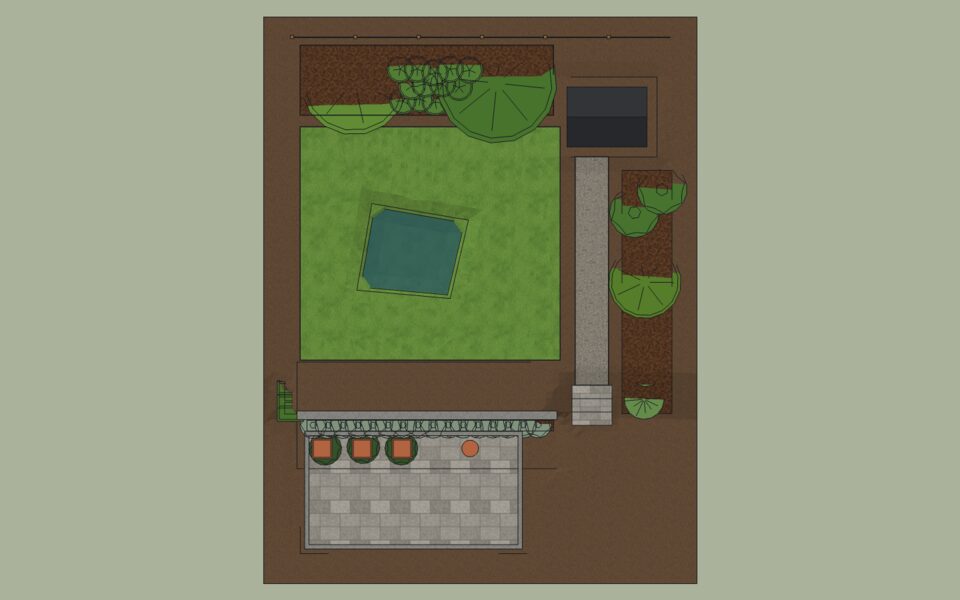
Each plant also has a plan symbol: a disc of its current spread, in its foliage colour, patterned by type. For a planting plan, tick Plan symbols and clear 3D plants in the Plants panel, then use Top view with Parallel Projection.
The plant schedule
File ▸ Export ▸ Plant Schedule… (or Schedule… in the Plants panel) saves a CSV file with one row per species: names, type, count, spacing, sizes at planting and at maturity, foliage and flowering months.
| Plant | Type | Count | Spacing | Size at planting | Mature size |
|---|---|---|---|---|---|
| Betula pendula, silver birch | tree | 1 | 6 m | 2 m | 18 × 8 m |
| Malus domestica, apple | tree | 1 | 5 m | 2 m | 6 × 6 m |
| Acer palmatum, Japanese maple | tree | 1 | 4 m | 2 m | 5 × 5 m |
| Carpinus betulus, hornbeam hedge | hedge | 21 | 0.4 m | 0.6 m | 2.5 × 0.8 m |
| Lavandula angustifolia, lavender | shrub | 16 | 0.45 m | 0.3 m | 0.6 × 0.8 m |
| Geranium 'Rozanne', cranesbill | perennial | 14 | 0.5 m | 0.15 m | 0.5 × 0.8 m |
| Buxus sempervirens, box | shrub | 3 | 1 m | 0.4 m | 1.5 × 1.5 m |
| Miscanthus sinensis, silver grass | grass | 3 | 1 m | 0.2 m | 1.8 × 1.2 m |
| Hydrangea macrophylla, hydrangea | shrub | 2 | 1.2 m | 0.4 m | 1.5 × 1.5 m |
Chapter 11
Seeing the design
A garden design has to convince someone: a client, a neighbour, yourself. This chapter turns the model into pictures: views from where people will stand, a photoreal render, the design matched into a photograph of the real site, and an animation through the scenes.
Viewpoints
Good presentation views are eye-level views from where people will be: the back door, the patio, the far end of the lawn. Use Camera ▸ Position Camera to stand at a point at eye height, and Camera ▸ Look Around to turn your head. Camera ▸ Field of View widens or narrows the lens. Save each view as a scene (chapter 6).
Photoreal renders
Terrafold has a built-in path tracer: it follows the light from the sun and the sky as it bounces around the scene, so materials, shadows and reflections look real.
- View ▸ Path Traced Preview turns the viewport into a render that sharpens while the camera stands still. Use it to judge light and materials as you work.
- Window ▸ Render… makes a final image. Choose the Quality (Draft, Good or Best), the Size, and optionally Depth of field, then press Render. Save PNG… saves the image.
The Environment panel sets the light: a physical sky that follows the shadow settings, a single colour, or an HDRI panorama, with the exposure and tone mapping. Plants render in their colours for the garden time you have set: render the same scene in May and October for two very different pictures.
Match Photo
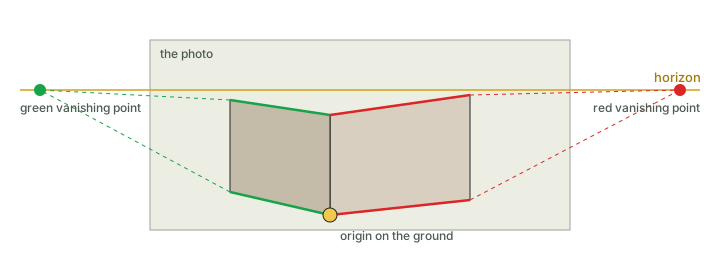
Camera ▸ Match New Photo… puts a photograph of the site behind the model and works out where the camera stood. You drag two pairs of lines onto edges in the photo that you know are horizontal and at right angles to each other, such as the walls of a house or the edges of paving. Where each pair meets is a vanishing point; from the two vanishing points Terrafold finds the camera.
- Choose Camera ▸ Match New Photo… and pick a PNG or JPEG.
- Drag the ends of the two red lines onto edges that run along one direction, and the two green lines onto edges at right angles to them. Keep each pair far apart.
- Drag the yellow origin to a ground point where the two directions meet.
- In the Match Photo panel, set the scale: choose an axis, type a length you know (
4m), press Set and drag the white handle to the far end of that length. - Press Done. The photo is stored with a new scene.
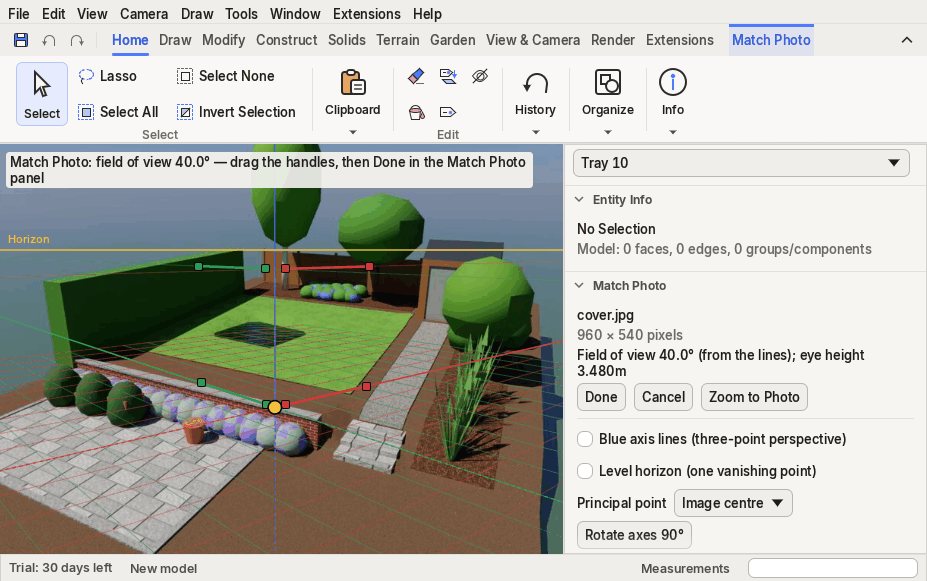
Now model in the photo's perspective: draw the new patio where it will be, and go back to the photo's scene to see it in place. Project Textures from Photo paints selected faces with the part of the photo behind them, a quick way to give a model of an existing building its real facade.
Images and animations
- File ▸ Export ▸ 2D Graphic… saves the current view, in the current style, as a PNG.
- File ▸ Export ▸ Section Slice… saves a section cut as an SVG drawing (see Tools ▸ Section Plane).
- View ▸ Animation ▸ Play moves smoothly from scene to scene. File ▸ Export ▸ Animation… saves it as a numbered series of PNG frames, which any video editor turns into a film. Set the transition and pause times in View ▸ Animation ▸ Settings.
Chapter 12
Working with others
A design rarely stays in one program. Surveys arrive as DXF, furniture as glTF, a client's builder wants an OBJ, and you may want to automate the boring parts. This chapter is a short tour of the ways in and out of Terrafold.
The .tfo file
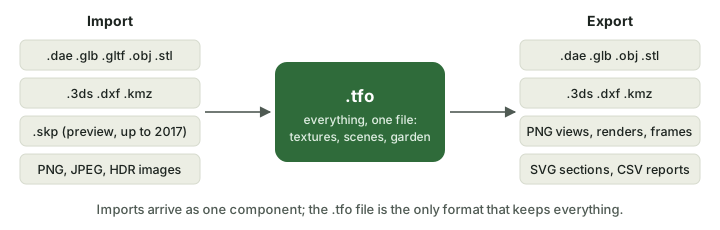
A .tfo file holds everything: geometry, groups and components, tags, materials with their textures, scenes, matched photos, garden elements, plants and the garden time, the environment and a preview. Textures are inside the file, so one file is all you share. When you save over a file, the previous version is kept next to it as <name>.backup.tfo.
Import
File ▸ Import… brings a model into the open one as one component, named after the file, that follows the pointer until you click to place it. Its materials come along. Terrafold reads COLLADA (.dae), glTF (.glb, .gltf), OBJ, STL, 3DS, DXF, KMZ and other .tfo files, and it imports .skp files (a preview, for files saved by versions up to 2017).
Export
File ▸ Export ▸ 3D Model… writes COLLADA, glTF binary, OBJ, STL, 3DS, DXF and KMZ. Hidden geometry is left out of most of them. Pick the format the other program reads best: glTF for real-time viewers and game engines (it keeps physically based materials), OBJ or COLLADA for other modellers, STL for 3D printing, DXF for CAD drawings.
Images, sections, animations and the garden reports have their own exports, see chapter 11 and chapter 9.
Extensions and the Script Console
Everything is a command, so everything can be scripted. Window ▸ Script Console runs small scripts in the Rhai language, with the same commands you use:
run("rectangle", #{ corner: [0, 0, 0], size: ["2m", "1m"] });
model_info().counts
Extensions ▸ Extension Manager installs extensions: folders or .zip files with a script that adds its own commands, menu items and buttons. Extensions run in a sandbox: they can't read your files or reach the network, and each command they run is one step of Undo. See Extensions in the documentation.
The command-line tool
The desktop packages include terrafold-cli, which works on models without a window: terrafold-cli convert converts between formats, export and render make images, info summarises a file, and run runs a script of commands on a model and saves the result. The figures and model files of this guide were made that way. Run terrafold-cli --help, or see File formats in the documentation.
Chapter 13
Licence, trial and viewer mode
Terrafold works fully offline, and so does its licence. This short chapter explains the trial, what happens when it ends, and how to enter a licence key.
The first start
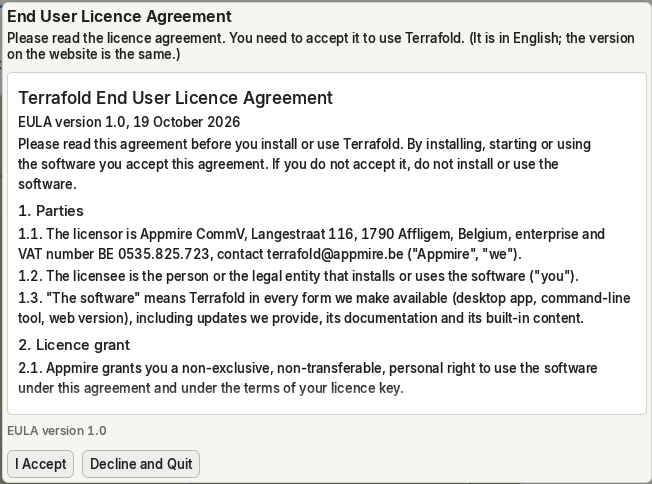
The first time Terrafold starts, it shows the end user licence agreement. Read it and choose I Accept to continue. You can read it again at any time with Help ▸ Licence Agreement, or on the website.
The 30-day trial
Without a licence key, Terrafold is a full trial for 30 days from the first start. Every feature in this guide works. The status bar shows how many days are left.

A trial never ends while you work: a session that started on the last day keeps every feature until you close Terrafold.
Viewer mode
After the trial, or when your licence doesn't cover the version you run, Terrafold starts in viewer mode. The status bar says so, with Buy and Enter key buttons.
In viewer mode you can still open and look at models, use scenes, change things to try them out, and export images and renders. You can't save, export 3D models, or export the CSV reports. Nothing is lost: recovery copies are still written, and as soon as you enter a key you can save, without restarting.
Enter a licence key
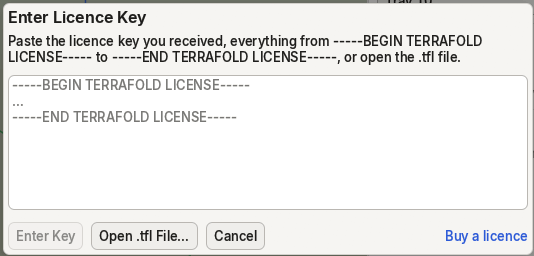
A licence key is a short block of text you receive by e-mail, or a .tfl file. Terrafold checks it on your own computer: nothing is sent anywhere.
- Choose Help ▸ Enter Licence Key….
- Paste the key (everything from
-----BEGIN TERRAFOLD LICENSE-----to-----END TERRAFOLD LICENSE-----), or choose Open .tfl File…. - Choose Enter Key.
Help ▸ About Terrafold and the status bar then show who the licence is for, and Help ▸ License shows its type, dates and the versions it covers. A perpetual licence covers the versions released during its first year, forever; a subscription works until its end date, plus 14 days to renew. To buy one, choose Help ▸ Buy Terrafold… or see the buy page. The licence documentation has the details, including terrafold-cli license for the command line.
Appendix A
Shortcut card
Every default shortcut, by menu. Print this page and keep it by your keyboard. On macOS, use Cmd for Ctrl and Option for Alt. You can change any shortcut in Window ▸ Preferences ▸ Shortcuts.
File
- Ctrl+Q
- Exit
- Ctrl+N
- New
- Ctrl+O
- Open
- Ctrl+S
- Save
- Ctrl+Shift+S
- Save As
Edit
- Ctrl+C
- Copy
- Ctrl+X
- Cut
- Delete
- Delete
- Ctrl+Shift+I
- Invert Selection
- G
- Make Component
- Ctrl+V
- Paste
- Ctrl+Y
- Redo
- Ctrl+A
- Select All
- Ctrl+T
- Select None
- Ctrl+Z
- Undo
View
- Ctrl+F1
- Collapse Ribbon
Camera
- O
- Orbit
- H
- Pan
- Z
- Zoom
- Shift+Z
- Zoom Extents
Draw
- A
- 2 Point Arc
- L
- Line
- C
- Circle
- R
- Rectangle
Tools
- E
- Eraser
- M
- Move
- F
- Offset
- B
- Paint Bucket
- P
- Push/Pull
- Q
- Rotate
- S
- Scale
- Space
- Select
- T
- Tape Measure
While a tool runs
| Key or mouse | Effect |
|---|---|
| type a value, Enter | exact length, size, angle or count (2.4, 3m,2m, 45, 5x, /5, 24s) |
| Backspace / Escape | edit the typed value / cancel the current operation |
| Shift (hold) | lock the current inference |
| Right Left Up | lock the red, green, blue axis |
| Down | lock parallel, then perpendicular, to the last edge hovered |
| Ctrl | copy (Move, Rotate), new face (Push/Pull), from the centre (Rectangle), about the centre (Scale), connected (Paint Bucket) |
| Alt | auto-fold (Move, Rotate), stretch (Push/Pull), overlap (Offset), pick up (Paint Bucket), mode (Plant) |
| the mouse | middle-drag orbits, Shift + middle-drag pans, the wheel zooms towards the pointer, a middle double-click recentres |
Appendix B
The modelling philosophy on one page
The whole guide in a few rules. When a tool surprises you, one of these explains it.
Geometry
- Edges make faces. A face appears when edges close a flat loop. Erase an edge and its face goes; erase a face and its edges stay.
- Faces become solids. Draw the flat shape exactly, then Push/Pull it along its normal. Pushing a face through a solid makes a hole.
- Geometry is sticky. Touching edges and faces share points and split each other. Move a point or an edge and everything attached follows, folding where it must.
- Faces have two sides. A face drawn on the ground faces down; solids turn their fronts outwards.
Precision
- The mouse gives the direction, the keyboard gives the size. Type at any time, press Enter; type again right after to amend.
- Inference replaces the grid. Watch the marker: Endpoint, Midpoint, On Edge, On Face, the axes, Parallel, Perpendicular. Lock with Shift or the arrows.
- Set out with guides. The Tape Measure makes guides; draw on them; delete them when done.
Structure
- Loose geometry sticks; groups don't. Wrap every finished thing in a group or a component.
- Repeat with components. Instances share a definition: edit one, all change. Make Unique splits one off.
- Tags decide what is drawn, groups decide what sticks. Tag whole objects; leave their insides Untagged.
- Scenes save a way of looking, never the geometry. Camera, visible tags, style, shadows.
Looks
- Paint is separate from shape. Painting a group fills its unpainted faces; faces painted inside win.
- Styles change the drawing, not the model. Face style, edges, colour by tag, fog and shadows are all part of the style or the scene.
The garden
- Terrain is a TIN. Points at real heights, flat triangles between them; everything lies on it exactly.
- Draw intent, let the ground decide. Outlines for areas, paths for steps and walls, a height for a pad: Terrafold grades and sizes them, and counts cut and fill.
- Dig before you cover. Ponds before the lawn around them; buildings onto graded pads.
- Plants know their future. Garden time sets their age and season; plan symbols and the schedule come for free.
Everything
- Everything is a command, from the menu, the ribbon, a key, a script or the command line, and every command is one step of Undo.
