 Terrafold
Terrafold user guide
Download the PDF Print version
A course in modelling with Terrafold, from the first line to a finished garden design. Follow the chapters in order: each one builds on the last, and from chapter 4 on you build one garden project step by step, with a sloping lawn, a shed, a fence, a patio, steps, a pond and planting.
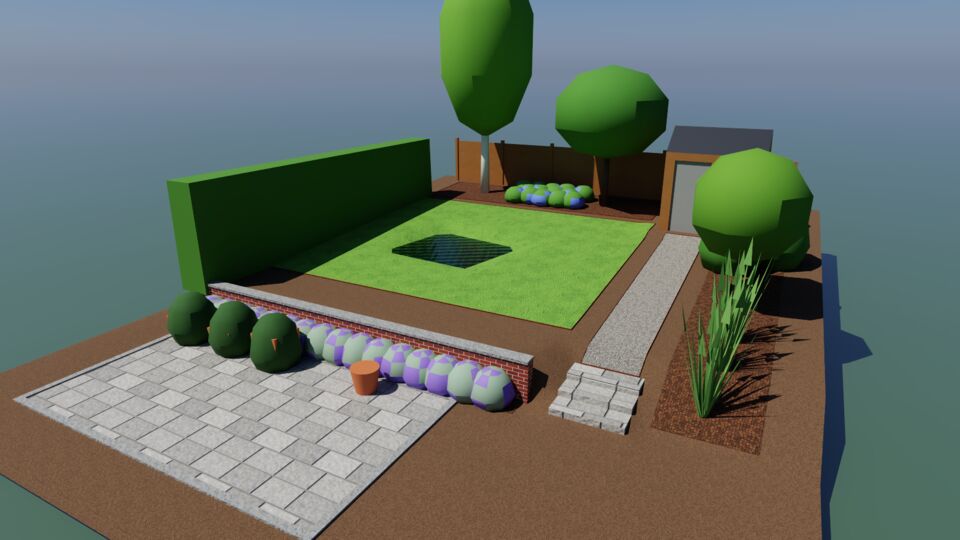
The guide teaches how Terrafold thinks, so the tools make sense. For a quick look-up of a menu or setting, use the documentation instead.
- How to use this guide
This guide is a course. You learn Terrafold by doing: every chapter has steps to follow in the app, and the chapters build on each other. Read it from the start if Terrafold is new to you.
- 1The idea
Terrafold has very few kinds of things in it and a handful of rules. Learn the rules once and every tool behaves the way you expect. This chapter explains them before you draw anything.
- 2Getting around
Before you build anything, learn the window and how to look around a model. You will orbit, pan and zoom hundreds of times in every session, so make it a habit to do it with the mouse, without thinking.
- 3Drawing precisely
Terrafold models are exact: a 2.4 m wall is 2.4 m, not 2.398 m. You get there without a grid and without typing coordinates, through two things: inference, which snaps the pointer to what matters, and the Measurements box, which takes exact values.
- 4From flat to solid
Now you build real things. This chapter starts the garden project with a small shed, then makes a planter and a pot for the patio. Along the way you meet the tools that turn flat shapes into solids: Push/Pull, Offset, Move, Rotate, Scale and Follow Me.
- 5Keeping models clean
So far everything you drew is loose geometry, and loose geometry sticks to whatever it touches. That was useful for folding the roof, but in a real project you want the shed, the planters and the fence to stay separate. This chapter explains why groups and components exist, and when to use which.
- 6Organising
Groups and components keep geometry apart. Tags do something else: they sort things into sets that you can show, hide and colour, across the whole model. Scenes then remember a view together with which tags are visible. This chapter organises the project so that you can switch between a plan, an overview and a close-up in one click.
- 7Materials and looks
Geometry says what a thing is; materials and styles say how it looks. They are separate on purpose: you can repaint a shed or switch the whole model to a sketchy pencil look without touching a single edge. This chapter paints the project and sets the sun.
- 8The ground
Gardens are rarely flat. Our plot rises 1.2 m from the house to the back fence, and the shed, the patio and the lawn each need level ground. In this chapter you build the terrain from survey contours, grade level pads into it, and read the cut and fill numbers.
- 9Hardscape and water
With the ground in place, the hard parts of the garden go on top: a patio, a retaining wall, steps, a gravel path, a lawn, planting beds and a pond. Each one is drawn as an outline or a path on the terrain, and Terrafold works out the rest: it follows the ground, grades where it must, and keeps count of areas and volumes.
- 10Planting
A garden is mostly plants, and plants change: they grow for years and look different every season. Terrafold's plants know that. You place species from a library, and the model shows them at any age and in any month, in 3D and as plan symbols, and counts them for the nursery.
- 11Seeing the design
A garden design has to convince someone: a client, a neighbour, yourself. This chapter turns the model into pictures: views from where people will stand, a photoreal render, the design matched into a photograph of the real site, and an animation through the scenes.
- 12Working with others
A design rarely stays in one program. Surveys arrive as DXF, furniture as glTF, a client's builder wants an OBJ, and you may want to automate the boring parts. This chapter is a short tour of the ways in and out of Terrafold.
- 13Licence, trial and viewer mode
Terrafold works fully offline, and so does its licence. This short chapter explains the trial, what happens when it ends, and how to enter a licence key.
- AShortcut card
Every default shortcut, by menu. Print this page and keep it by your keyboard. On macOS, use kbd:Cmd for kbd:Ctrl and kbd:Option for kbd:Alt. You can change any shortcut in Window ▸ Preferences ▸ Shortcuts.
- BThe modelling philosophy on one page
The whole guide in a few rules. When a tool surprises you, one of these explains it.
The project files
Each chapter of the project ends with a model file, so you can check your work or start a chapter without doing the earlier ones: ch04.tfo, ch05.tfo, ch06.tfo, ch07.tfo, ch08.tfo, ch09.tfo, ch10.tfo and ch11.tfo. Open them with File ▸ Open.