 Terrafold
Chapter 10
Planting
A garden is mostly plants, and plants change: they grow for years and look different every season. Terrafold's plants know that. You place species from a library, and the model shows them at any age and in any month, in 3D and as plan symbols, and counts them for the nursery.
The Plants panel
Open Window ▸ Default Tray ▸ Plants. At the top is the garden time (years after planting and the month), then whether to show 3D plants or Plan symbols, the Schedule… button, and the library of 68 species: trees, shrubs, hedges, perennials, grasses and groundcovers.
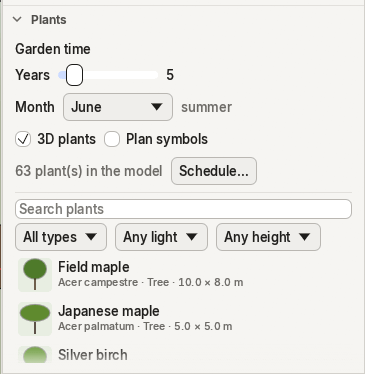
Search by common or botanical name, or filter by type, light and mature height. Hover a plant to see its size, growth rate, spacing, light, hardiness and flowering months. Click it to choose it: the Plant tool starts.
Place plants
Draw ▸ Garden ▸ Plant has three modes. Press Alt to go from one to the next, or choose the Mode on the Plant options tab.
- Single: click to place one plant.
- Row: click the start and the end; plants go in at even spacing. Hedges turn to follow the row.
- Area: click the corners of an area and close it; it fills with plants on a staggered grid, with a little natural variation.
The spacing starts at the species' planting distance. Type a length (50cm) to change it; type it right after a row or area and Terrafold replants it at the new spacing.
Garden time
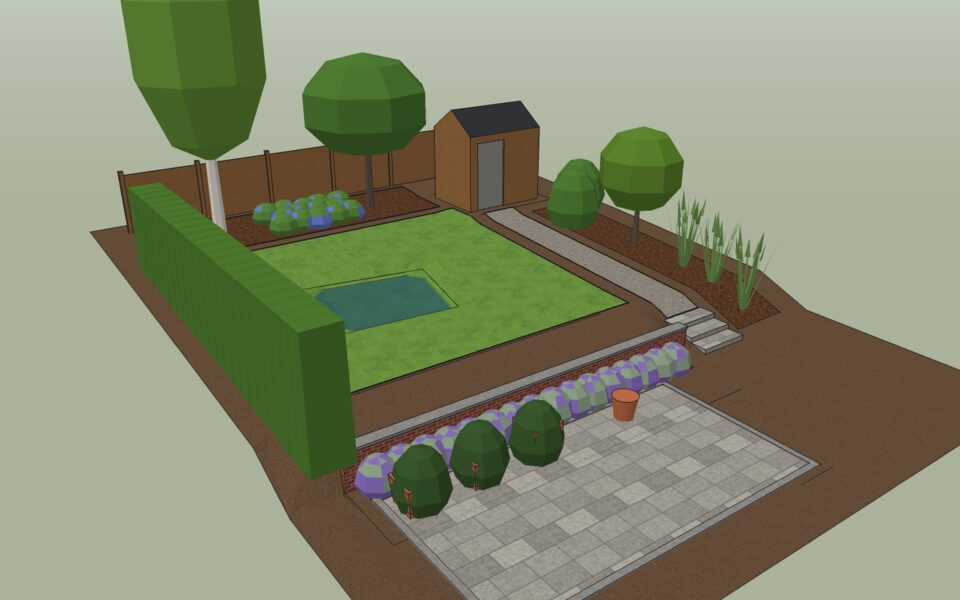
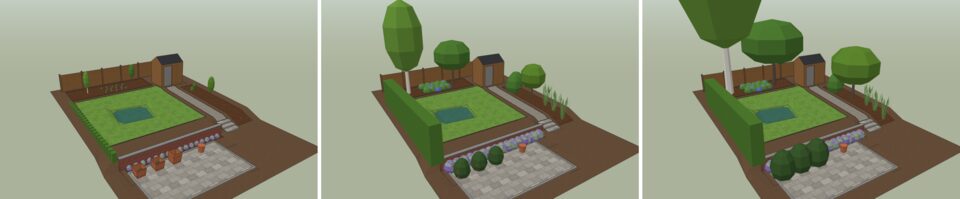
The model has a garden time: years since planting and a month. Set it in the Plants panel or with the Year and Month controls on the Garden tab. Each plant starts at a nursery size and grows towards its mature size, quickly at first and then slower.
Seasons
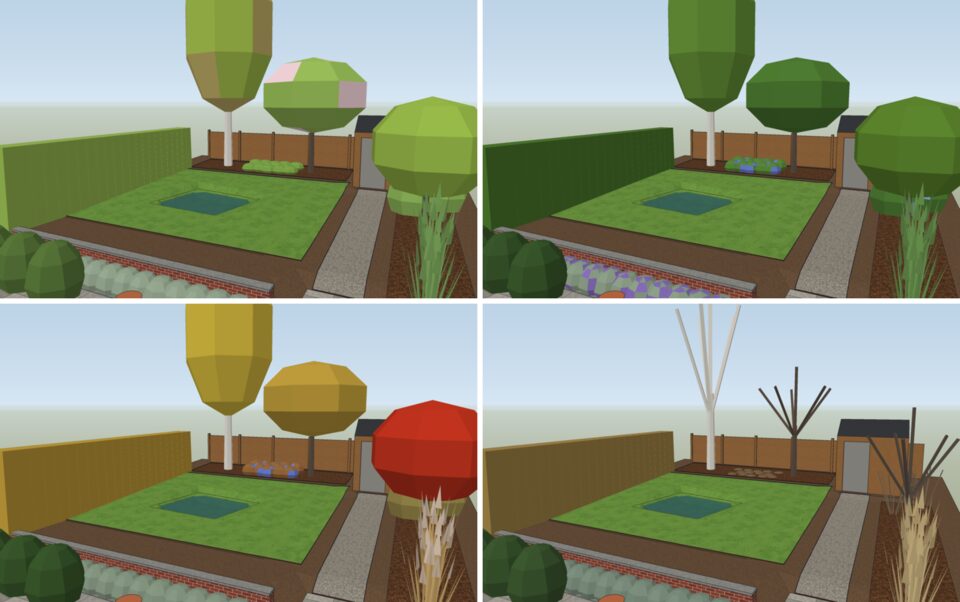
Change the month and the plants follow the seasons: fresh green in spring, darker in summer, colours in autumn, bare branches in winter (hornbeam hedges keep their dry leaves). In their flowering months, part of the crown takes the flower colour.
The planting plan
Each plant also has a plan symbol: a disc of its current spread, in its foliage colour, patterned by type. For a planting plan, tick Plan symbols and clear 3D plants in the Plants panel, then use Top view with Parallel Projection.
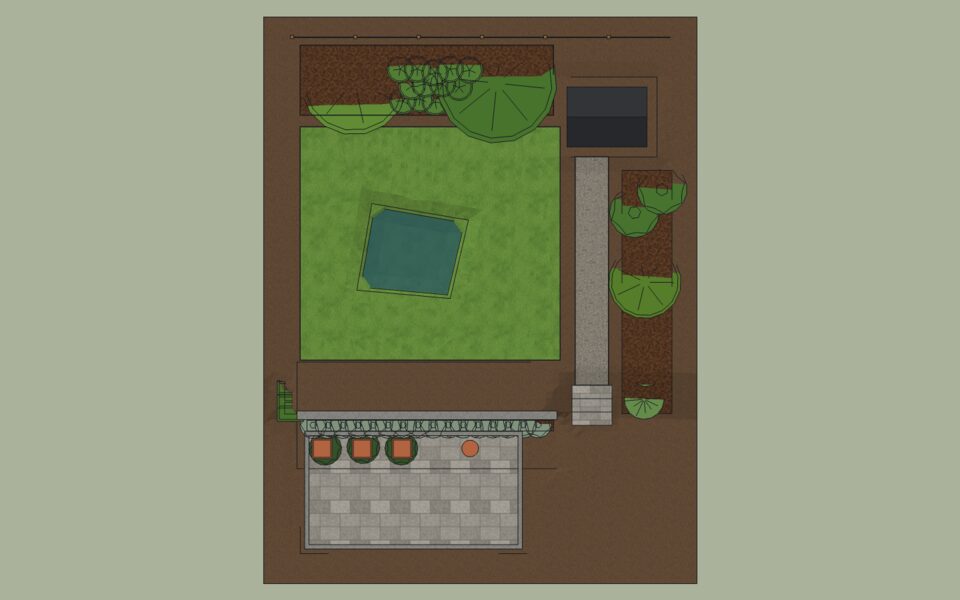
The plant schedule
File ▸ Export ▸ Plant Schedule… (or Schedule… in the Plants panel) saves a CSV file with one row per species: names, type, count, spacing, sizes at planting and at maturity, foliage and flowering months.
| Plant | Type | Count | Spacing | Size at planting | Mature size |
|---|---|---|---|---|---|
| Betula pendula, silver birch | tree | 1 | 6 m | 2 m | 18 × 8 m |
| Malus domestica, apple | tree | 1 | 5 m | 2 m | 6 × 6 m |
| Acer palmatum, Japanese maple | tree | 1 | 4 m | 2 m | 5 × 5 m |
| Carpinus betulus, hornbeam hedge | hedge | 21 | 0.4 m | 0.6 m | 2.5 × 0.8 m |
| Lavandula angustifolia, lavender | shrub | 16 | 0.45 m | 0.3 m | 0.6 × 0.8 m |
| Geranium 'Rozanne', cranesbill | perennial | 14 | 0.5 m | 0.15 m | 0.5 × 0.8 m |
| Buxus sempervirens, box | shrub | 3 | 1 m | 0.4 m | 1.5 × 1.5 m |
| Miscanthus sinensis, silver grass | grass | 3 | 1 m | 0.2 m | 1.8 × 1.2 m |
| Hydrangea macrophylla, hydrangea | shrub | 2 | 1.2 m | 0.4 m | 1.5 × 1.5 m |