 Terrafold
Chapter 1
The idea
Terrafold has very few kinds of things in it and a handful of rules. Learn the rules once and every tool behaves the way you expect. This chapter explains them before you draw anything.
Edges make faces
A Terrafold model is made of edges (straight lines between two points) and faces (flat surfaces bounded by edges). There are no boxes, cylinders or walls as separate object types. A box is six faces and twelve edges; a cylinder is a ring of faces with soft edges between them.
You never create a face directly. You draw edges, and as soon as edges close a flat loop, Terrafold fills it with a face. Take the face away (erase it) and the edges stay; erase an edge and the face it bounded goes too, because it is no longer closed.
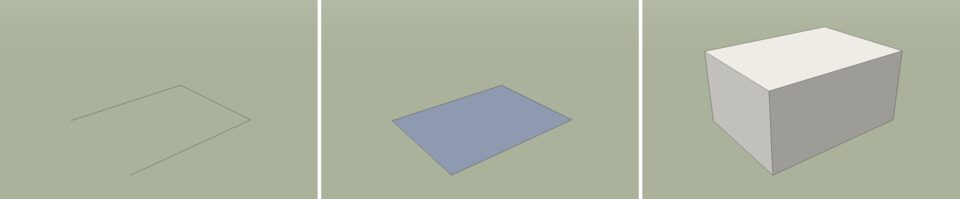
The face in the middle of Figure 1.1 is blue-grey because you see its back. Faces have a front and a back: a face drawn on the ground faces down, so from above you look at its back. When you pull it up into a box, every outer face turns its front outwards.
Faces become solids
The second idea is Push/Pull: click a face and move it along its normal (straight out of the face). Terrafold builds the sides for you. A rectangle becomes a box, a circle becomes a cylinder, a window outline drawn on a wall becomes a recess when you push it in.
This is how most things are modelled in Terrafold: draw a flat shape that is right, then pull it into 3D. The flat shape is easy to get exact, and the third dimension follows.
Geometry is sticky
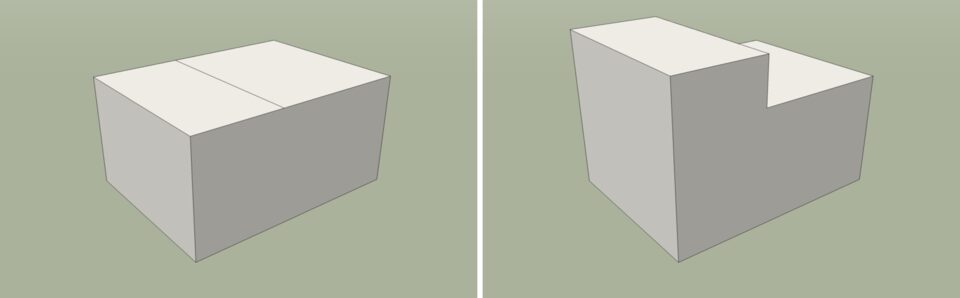
Edges and faces that touch become part of one surface. Where a line crosses a face, the face is split. Where two edges meet, they share their end point. Move a point, and every edge and face that uses it moves along.
Type exact values at any time
You draw with the mouse, but you don't have to aim. Whenever a tool needs a length, an angle or a size, the Measurements box at the bottom right of the window shows the current value, and you can type a new one. There is no need to click the box first: start typing and press Enter.
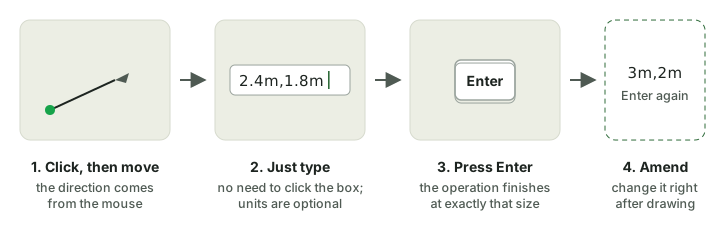
The mouse says which way; the numbers say how far. Move the pointer to show the direction (along the red axis, for example), then type 2.4 and press Enter. Right after an operation you can type again to change it: draw a rectangle, then type 3m,2m and it becomes 3 m by 2 m.
Everything is a command
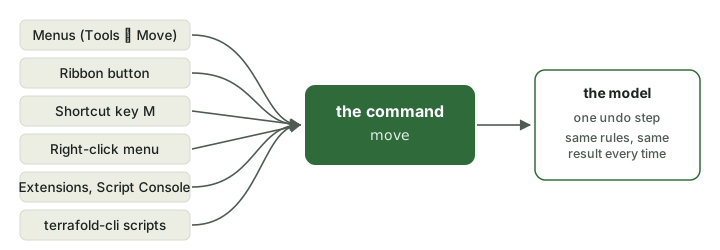
Every action in Terrafold is a command with a name: line, pushpull, move, garden_lawn. The menu item, the ribbon button, the shortcut key, the right-click menu, extension scripts and the command-line tool all run the same command in the same way.