 Terrafold
Chapter 6
Organising
Groups and components keep geometry apart. Tags do something else: they sort things into sets that you can show, hide and colour, across the whole model. Scenes then remember a view together with which tags are visible. This chapter organises the project so that you can switch between a plan, an overview and a close-up in one click.
Tags, not layers
A tag is a label you put on an entity: the shed is on Buildings, the fence panels on Fences, the planters on Furniture. A tag doesn't move or change anything. It answers one question: should this be drawn right now? (Programs from the past called them layers; in Terrafold they are tags, because an entity is simply labelled, not stacked.)
Tag the project
Open the Tags panel (Window ▸ Default Tray ▸ Tags).
- Click + three times and name the tags Buildings, Fences and Furniture. Click each colour swatch and choose a colour.
- Select the shed and choose Buildings in the Tag row of Entity Info.
- Tag the fence panels Fences, and the planters and the pot Furniture. (Drag a selection rectangle from right to left across the fence: a right-to-left drag selects everything it touches, so all six panels at once.)
- Select Buildings, click the folder button to put it in a new tag folder, name it Structures, and drag Fences onto it too.
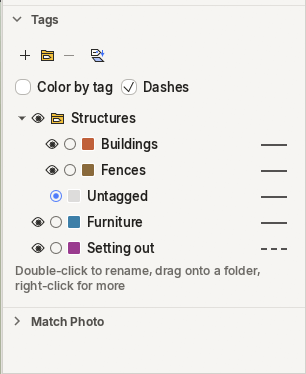
Each row has, from left to right: the eye (show or hide), the round button (make it the active tag), the colour, the name and the line pattern. A folder's eye hides everything in it at once.
The Tag tool
Tools ▸ Tag works like a paint bucket for tags: choose a tag on its options tab, then click things to put them on it. Ctrl+click tags everything connected, Alt+click picks up the tag of what you click. It is quicker than Entity Info when you tag many things one after the other.
The active tag, and dashed lines
Whatever you draw goes on the active tag. Make a tag active with its round button, draw, then make Untagged active again.
- Add a tag Setting out, and choose the dashed line pattern in its row.
- Make it active and draw two lines on the ground: the front edge of the future patio, and the centre line of the path to the shed.
- Make Untagged active again.
The lines are drawn dashed, at the same size on screen at any zoom. Setting-out lines, existing features to be removed, boundaries and services are typical dashed tags.
Colour by tag
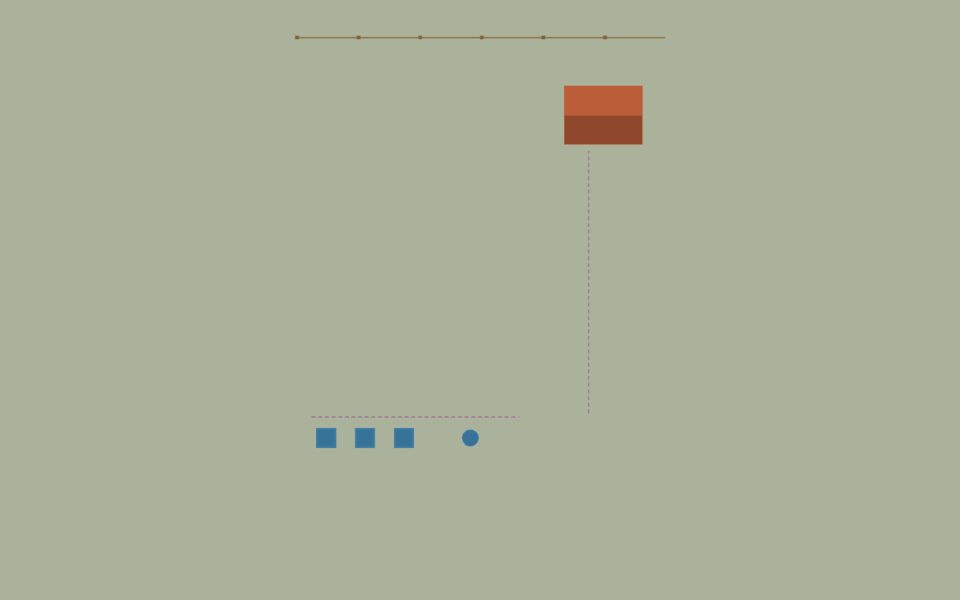
View ▸ Color by Tag draws every face and edge in its tag's colour instead of its material. It's a quick check of what is on which tag, and with Top view and Parallel Projection it makes a clear plan.
Hiding versus deleting
Hiding a tag doesn't remove anything: the geometry is still there, still counted, still saved. Bring it back with the eye. Deleting a tag doesn't delete its entities either: they become Untagged. To remove geometry, select it and press Delete.
You can also hide single entities with Edit ▸ Hide, and bring them back with Edit ▸ Unhide. View ▸ Hidden Geometry shows hidden things dimmed so you can select them.
Scenes
A scene is a saved way of looking at the model. It remembers the camera, which tags and folders are visible, hidden geometry, section planes, the style (including colour by tag), fog, shadows and the axes. It does not save the geometry: every scene shows the same model.
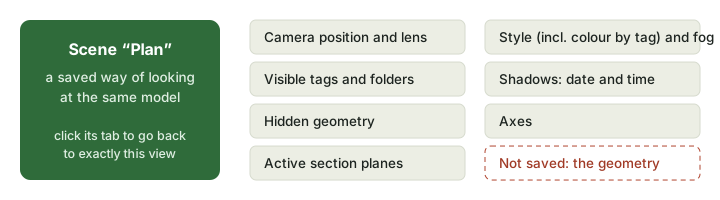
- Go to Top view with Parallel Projection and turn on Color by Tag. Choose View ▸ Animation ▸ Add Scene, and name it Plan in the Scenes panel.
- Turn colour by tag off, orbit to a view over the whole garden, and add a scene Overview.
- Zoom in on the shed and add a scene Shed.
Tabs for the scenes appear above the viewport (View ▸ Scene Tabs). Click one to go there, with a smooth camera move.
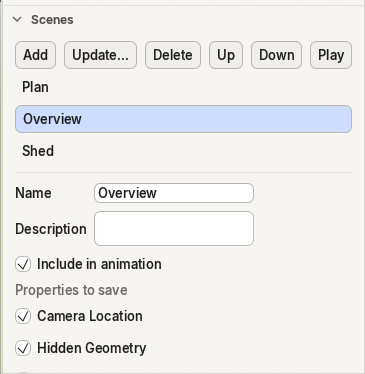
If you change a scene's view and want to keep it, click Update…: the scene takes the current view and settings.