 Terrafold
Chapter 5
Keeping models clean
So far everything you drew is loose geometry, and loose geometry sticks to whatever it touches. That was useful for folding the roof, but in a real project you want the shed, the planters and the fence to stay separate. This chapter explains why groups and components exist, and when to use which.
When stickiness gets in the way
Imagine you draw a compost bin against the side of the shed. Its side face lands on the shed wall and its edges join the wall's edges. Now move the bin away: the shared edges come along, and the wall is pulled out of shape. Triple-click the bin to select it, and you select the shed too, because everything connected is one surface.
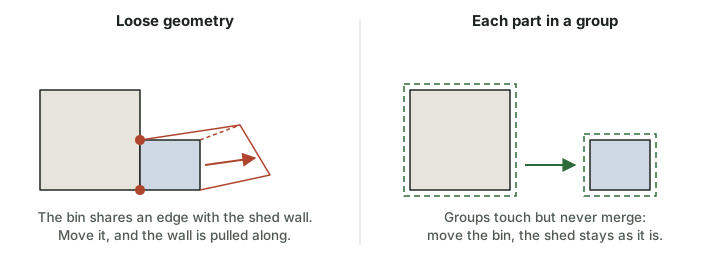
The fix is to wrap each separate thing in a group or a component as soon as it is finished. Geometry inside a group sticks only to other geometry in the same group.
Group the shed
- Press Space for the Select tool.
- Drag a selection rectangle from left to right around the whole shed. A left-to-right drag selects everything that lies fully inside it.
- Choose Edit ▸ Make Group.
- In Entity Info, type
Shedas the instance name.
Click the shed now and it is selected as one object, with a box around it. To change something inside, double-click it: you are in the group, the rest of the model fades, and you edit as before. Click outside it, or choose Edit ▸ Close Group or Component, to leave.
Groups and components
A component is like a group, with one difference that matters: copies of a component share their contents. The contents are the component's definition; each copy you place is an instance of it. Change the definition through any instance and all of them change.
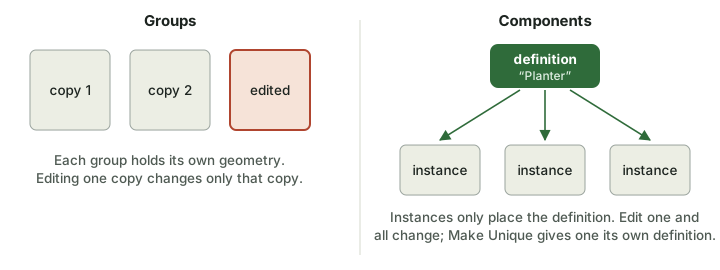
Use a group for a one-off: the shed, a wall, the terrain. Use a component for anything that repeats: planters, fence panels, posts, windows, chairs. Components also keep files small, because the geometry is stored once.
Planters as a component
- Select the planter (drag around it) and choose Edit ▸ Make Component (G). Name it
Planter. - Move a copy 1.2 m to the right: Move (M), press Ctrl, click a corner, move along the red axis, type
1.2, Enter. - Type
2xand press Enter. You have three planters. - Make the pot a component too, named
Pot.
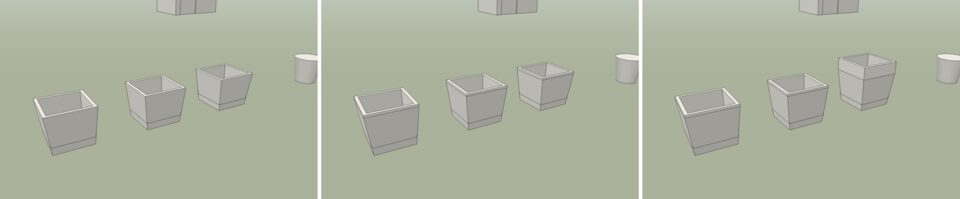
Now edit one planter: double-click it, Push/Pull its rim up 3 cm, and close it. All three get the taller rim.
Make Unique
Sometimes one copy should differ. Select the third planter and choose Make Unique on the Group context tab (or the button in Entity Info). It gets its own definition, called Planter#1. Edit it, push its rim up another 15 cm, and only that one changes.
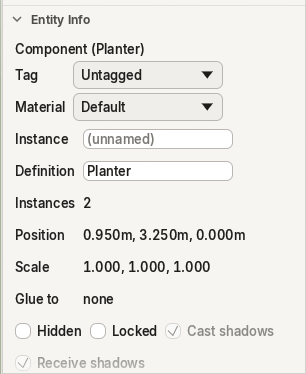
Entity Info and the Outliner
Entity Info shows what is selected and lets you change it: for a component, its tag, material, instance name, definition name, how many instances there are, position, scale and buttons for Make Unique, Reset Scale and Options.
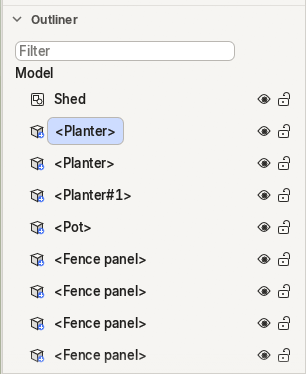
The Outliner (Window ▸ Default Tray ▸ Outliner) lists every group and component as a tree. Component instances show their definition in angle brackets. Click a row to select it, double-click to rename, use the eye to hide and the lock to protect it, and drag a row onto another to put it inside.
The fence
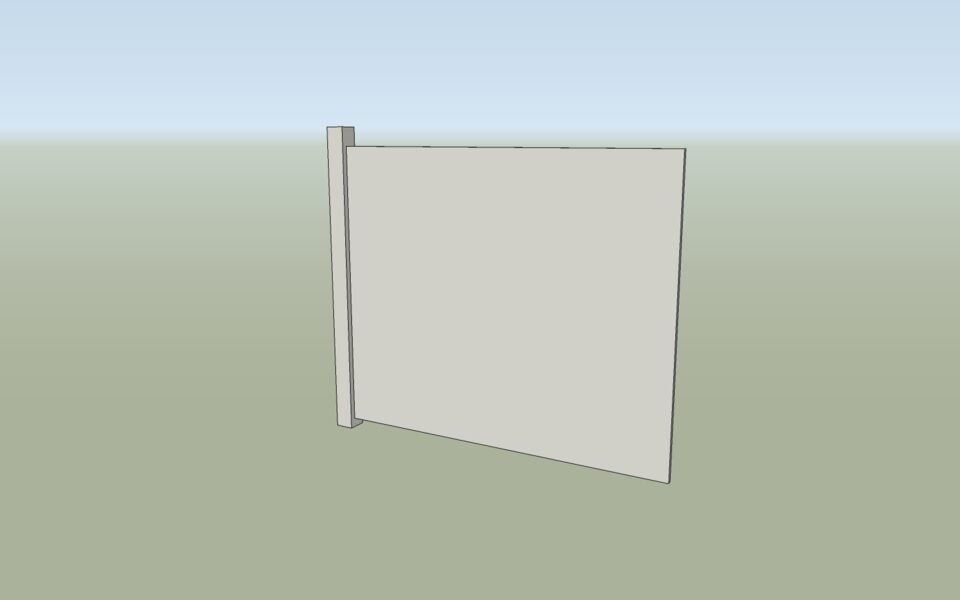
The back of the garden gets a fence of six panels, each a post and a board. You make one panel as a component and copy it.
- Draw a 10 cm by 10 cm rectangle at the left end of the back boundary and Push/Pull it up 1.65 m: the post.
- Draw the board as a rectangle standing against the post (start on the post's side face, it lies on that plane): 1.8 m wide, 1.5 m high, starting 5 cm above the ground. Push/Pull it 2 cm thick.
- Select the post and the board and make them a component named
Fence panel. - Move a copy 1.9 m along the red axis and type
5x.
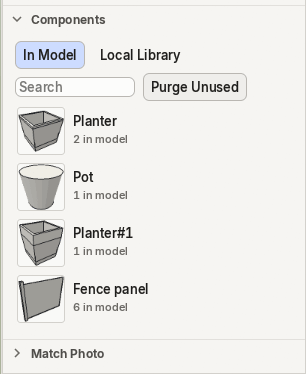
The Components panel (Window ▸ Default Tray ▸ Components) now lists Planter, Pot, Planter#1 and Fence panel with how many of each the model has. Click one, or drag it into the viewport, to place another instance.