 Terrafold
Chapter 7
Materials and looks
Geometry says what a thing is; materials and styles say how it looks. They are separate on purpose: you can repaint a shed or switch the whole model to a sketchy pencil look without touching a single edge. This chapter paints the project and sets the sun.
The Paint Bucket
Choose Tools ▸ Paint Bucket (B). The Materials panel opens with the materials In Model. Switch to Library for Terrafold's own materials: colours, textures such as Wood, Brick, Concrete and Floor Tiles, physically based presets such as Brushed Steel, Glass and Water, and the garden materials. Click one to add it to the model and start painting with it.
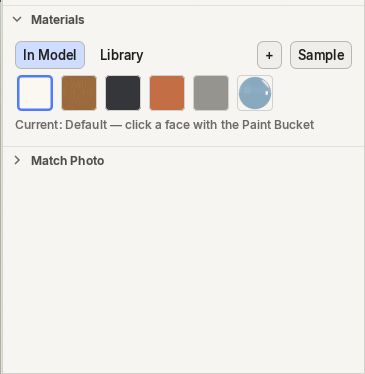
Then click faces to paint them:
- click paints one face;
- Ctrl+click paints all connected faces;
- Shift+click replaces a material everywhere it is used;
- Alt+click picks up the material of a face (a pipette).
Paint the project
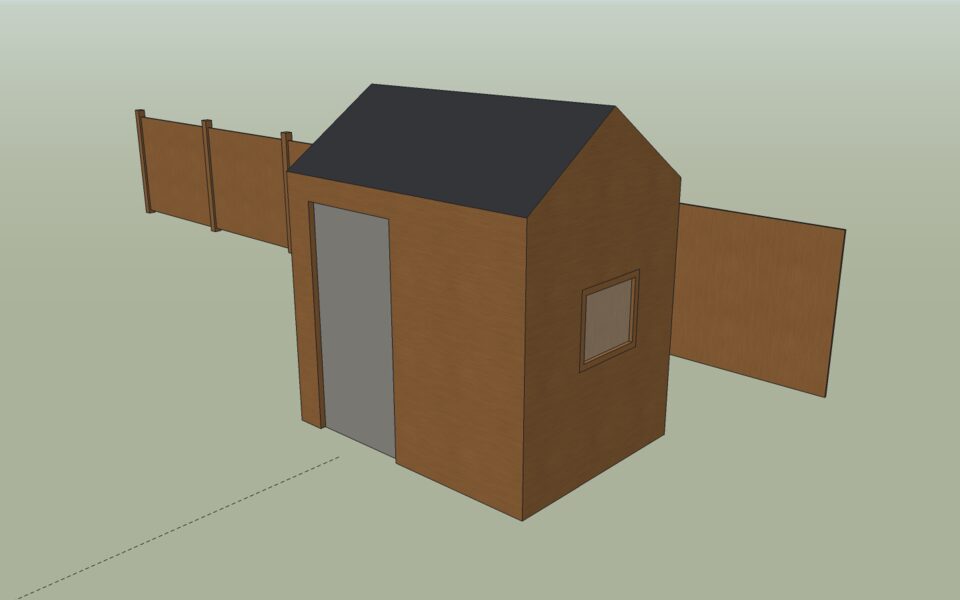
- Click Wood in the library, then click the shed group (not inside it). Every face inside the shed that has no material of its own takes Wood.
- Paint the fence panels Wood and the planters and pot Terracotta the same way: click the instances.
- Double-click the shed to go inside. Paint the two roof faces Charcoal, the door Stone Gray and the window pane Glass.
Textures and their position
A textured material, such as Wood, repeats an image across the face. Its size is part of the material (Edit tab of the Materials panel: the texture's width and height). Its position and direction belong to each face.
The shed's cladding should run vertically. The Position Texture command turns, moves and scales the texture on a face; as a tool you drag to move the texture, Ctrl-drag to rotate it and Shift-drag to scale it. In this version it has no menu item or button yet, so use Window ▸ Script Console: go inside the shed, select a wall, and run
run("texture_position", #{ face: selection()[0], rotation: 90 });
The texture on that wall turns a quarter turn. Repeat it for the other walls.
Styles: how the model is drawn
View ▸ Face Style changes how faces are drawn, without changing the model:
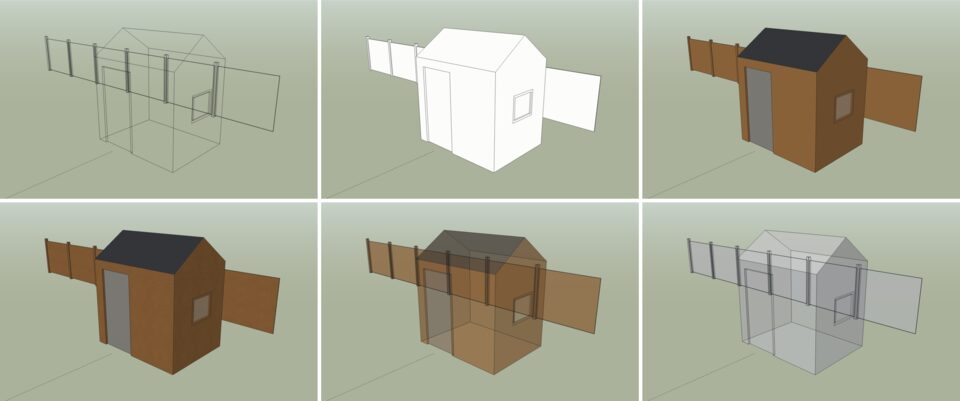
View ▸ Edge Style adds Back Edges (hidden edges dashed), Profiles (thick outlines), Depth Cue and Extension. The Styles panel saves all of these together, with the background and the edge colour, as a style. Terrafold comes with a few, such as Pencil Study, Blueprint and Clay Model.
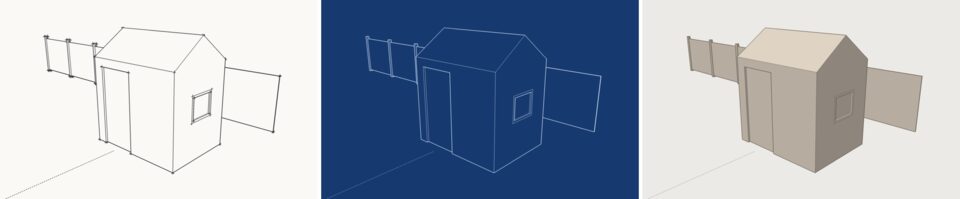
A style belongs to the model, and scenes remember which one they use. Make a scene for presenting (textures, shadows) and one for checking (monochrome, back edges).
Sun and shadows
Shadows come from a real sun: Terrafold works out its position from where the model is and the date and time.
- Set the location with File ▸ Geo-location ▸ Add Location…. For the project: latitude 51.05, longitude 3.72 (Ghent), time zone +1.
- Open the Shadows panel (Window ▸ Default Tray ▸ Shadows), set the date to 21 June and the time to 16:00.
- Turn shadows on with View ▸ Shadows.
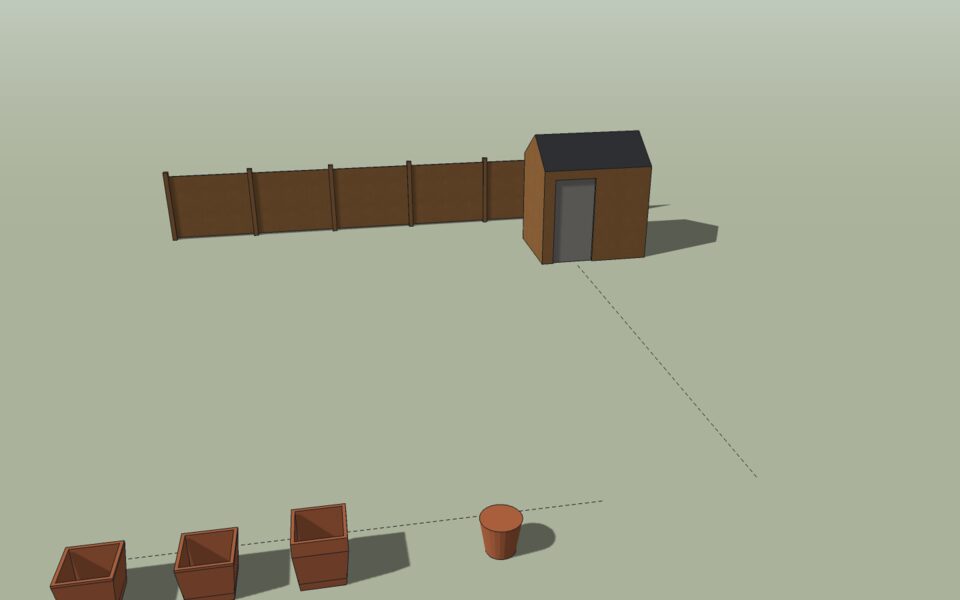
Shadows are worth checking early in garden design: where the shed throws its shadow is where shade-loving plants go.
View ▸ Fog fades the distance into the background colour (the Fog panel sets where it starts and ends). Useful for large sites, and for a soft look in presentations.