 Terrafold
Chapter 8
The ground
Gardens are rarely flat. Our plot rises 1.2 m from the house to the back fence, and the shed, the patio and the lawn each need level ground. In this chapter you build the terrain from survey contours, grade level pads into it, and read the cut and fill numbers.
Terrain from contours
A survey of a garden usually comes as contour lines: lines that join points of equal height. Terrafold stretches a surface over them.
- Select all the contour lines.
- Choose Draw ▸ Sandbox ▸ From Contours.
- Hide the Contours tag: the lines are no longer needed, but keep them.
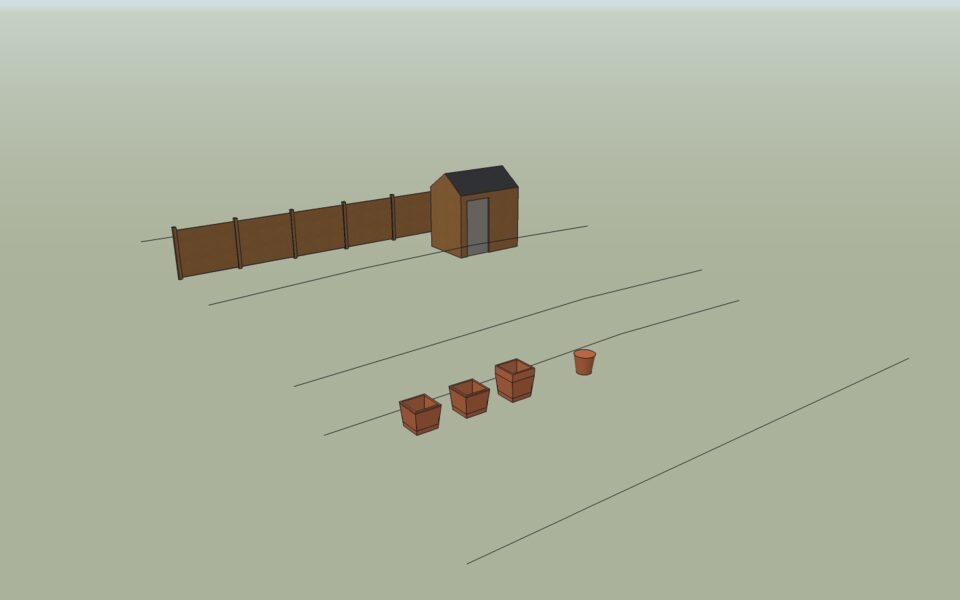
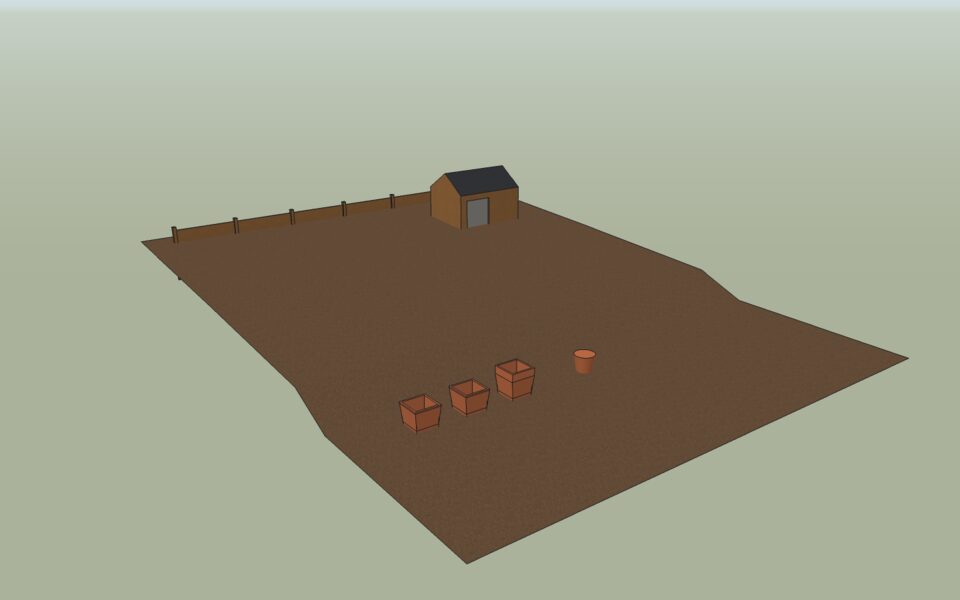
The terrain is a group of triangles. Paint it (Soil from the library), and it will show through wherever you don't lay something on top.
The other way to start is Draw ▸ Sandbox ▸ From Scratch: a flat grid of a given size and spacing, which you then shape with the brushes (below). Use it when there is no survey, or for a quick sketch.
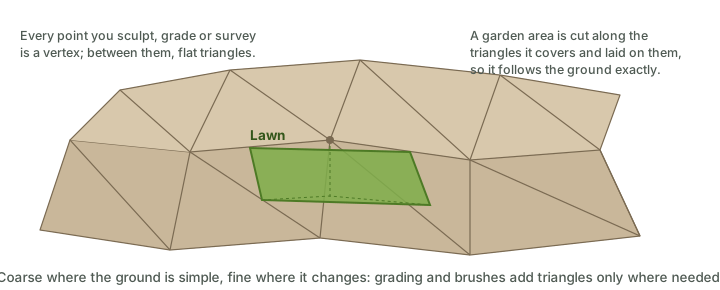
Why terrain is a TIN
Terrafold's terrain is a TIN, a triangulated irregular network: points at their real heights, joined by flat triangles. It is not a grid of heights, and it is not a smooth surface.
Grade a level pad
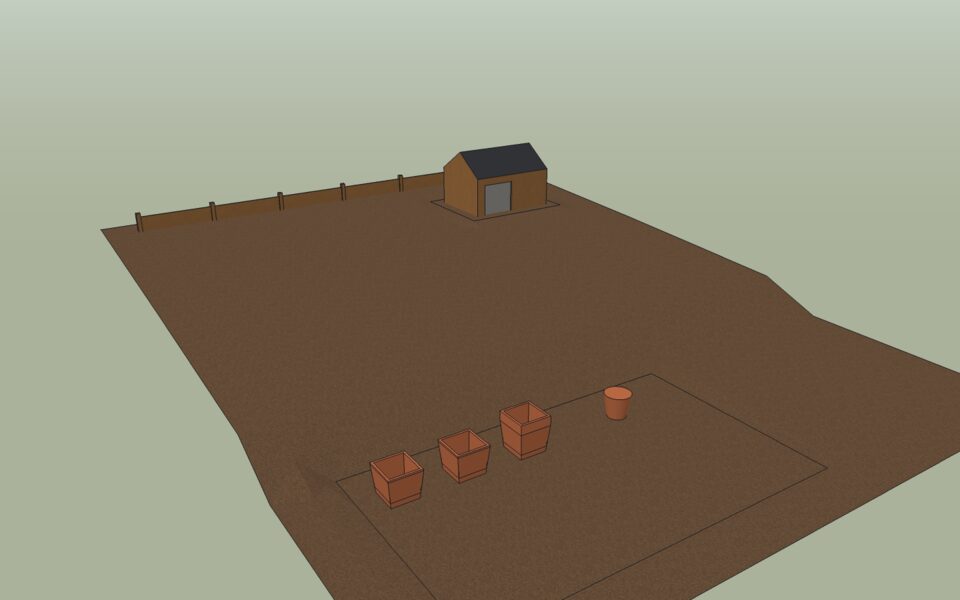
Tools ▸ Garden ▸ Grade Terrain makes a pad: a flat or evenly sloped area, with the ground around it sloping back to the existing level at a batter.
The shed needs a level base, 30 cm larger than the shed on every side.
- Choose Tools ▸ Garden ▸ Grade Terrain. Before clicking, type
1:2and press Enter: the batter, 1 up for 2 across. - Click the four corners of the pad around the shed's position, and close the outline by clicking the first point again (or press Enter).
- Move up or down to set the pad's height and click, or type how much to raise it (
0.1m, or-0.1mto lower it) and press Enter. In the project files the pad is level at 1.05 m above the patio.
Do the same for the patio by the house: a pad 6.8 m by 4 m, level at 0.
To slope a pad, type a height and a gradient: 0.3m,2% raises it 30 cm and slopes it 2 % along its first edge, for drainage.
Cut and fill
Every grading records how much soil is dug out (cut) and how much is brought in (fill). Terrafold computes them from the terrain before and after, triangle by triangle.
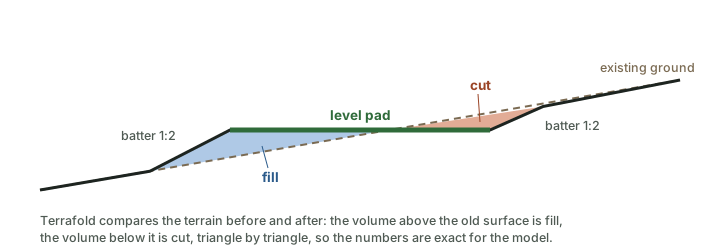
| Pad | Area | Cut | Fill |
|---|---|---|---|
| Shed, level at 1.05 m | 7.2 m² | 0.13 m³ | 0.25 m³ |
| Patio, level at 0 m | 27.2 m² | 0.99 m³ | 0.02 m³ |
Each grading is stored with the terrain, and the quantity report adds them up over the whole project (next chapter).
Put the buildings on the ground
The shed and the fence were drawn at height 0, before there was any terrain. Now lift them:
- Select the shed, start Move (M), click a corner, press Up to lock the blue axis, type
1.05and press Enter. - Select the six fence panels and move them up
1.12m, so the posts stand just into the ground at the back.
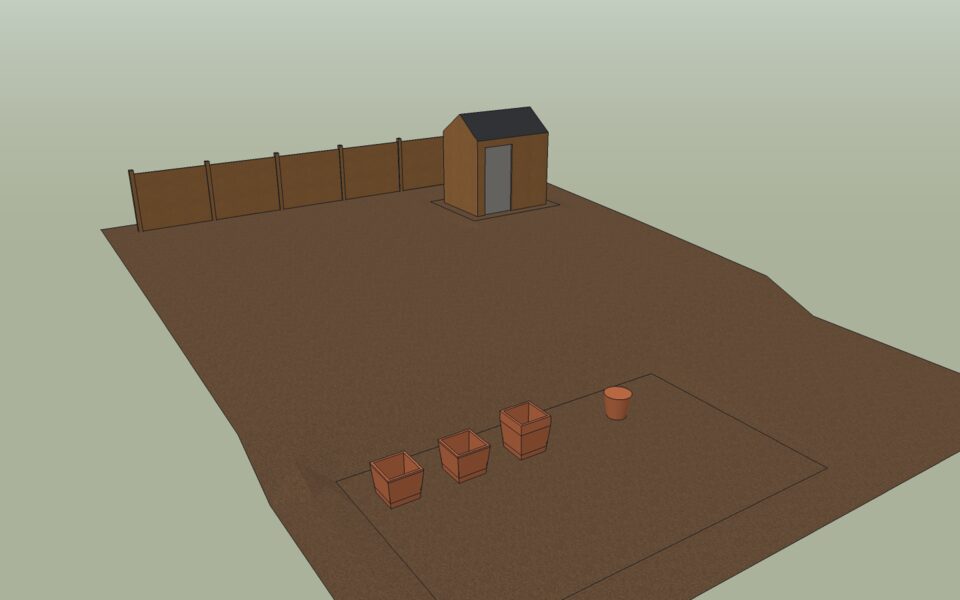
Select the terrain and the green Terrain tools context tab appears with the Sandbox tools and grading.

Sculpt by hand
The brushes in Tools ▸ Garden ▸ Sculpt paint changes onto the ground: press and drag over the terrain, and the stroke is one step of Undo. Type radius,strength to change the brush.
- Raise / Lower builds mounds or hollows (a negative strength lowers).
- Level flattens to the height under the first point, or one you type.
- Smooth evens out bumps.
- Relief and Relief in Area add natural unevenness.
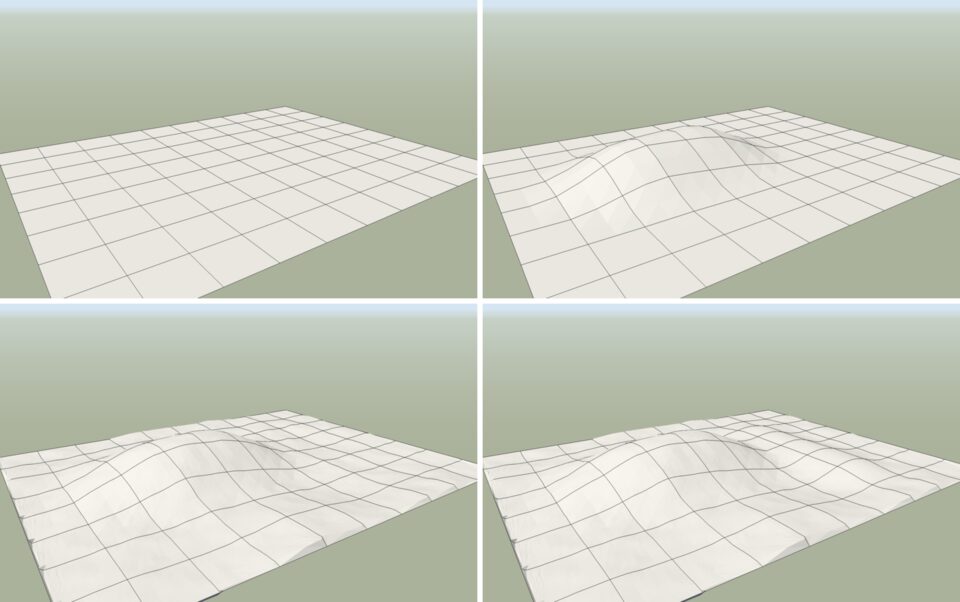
Where the triangles are too coarse for the brush, Terrafold refines them first. Every stroke also records its cut and fill.