 Terrafold
Chapter 4
From flat to solid
Now you build real things. This chapter starts the garden project with a small shed, then makes a planter and a pot for the patio. Along the way you meet the tools that turn flat shapes into solids: Push/Pull, Offset, Move, Rotate, Scale and Follow Me.
The shed
Step 1: the floor plan
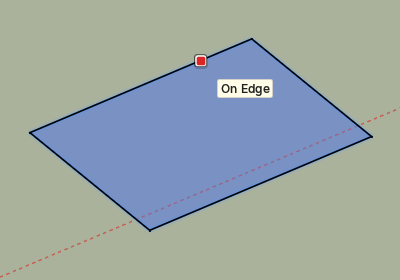
- Press R for the Rectangle tool.
- Click a first corner on the ground. Where exactly doesn't matter for learning; the project files have the shed 8.6 m along the red axis and 12.6 m along the green one, and you can always move it there later.
- Move the pointer up and to the right, type
2.4m,1.8mand press Enter.
Step 2: the walls
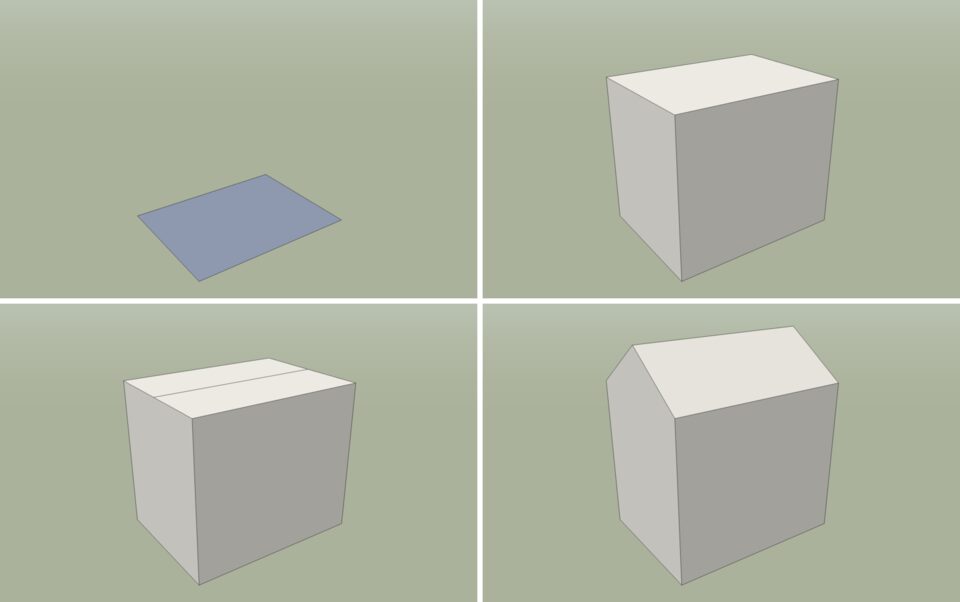
- Press P for Tools ▸ Push/Pull.
- Click the rectangle and move the pointer up.
- Type
2.1and press Enter. The rectangle becomes a box 2.1 m high.
Step 3 and 4: a pitched roof
- With the Line tool (L), draw a line across the top face from the Midpoint of one short edge to the Midpoint of the other. The top face splits in two.
- Press Space for the Select tool and click that line.
- Press M for Tools ▸ Move. Click the line, move straight up (the blue axis; press Up to lock it), type
0.6and press Enter.
The two halves of the top face fold into a roof, and the end walls grow into gables.
Step 5: the door
- Draw a rectangle on the front wall, starting at the bottom edge:
0.9m,1.9m. It splits the wall face. - Push/Pull it 5 cm into the wall: click it, move inwards, type
0.05, Enter.
Step 6: a window with a frame
- Draw a rectangle on the side wall, 0.7 m by 0.6 m.
- Choose Tools ▸ Offset (F), click the window face and move inwards. Type
0.05and press Enter. A second outline appears 5 cm inside the first: the frame. - Push the inner face (the pane) 3 cm in.
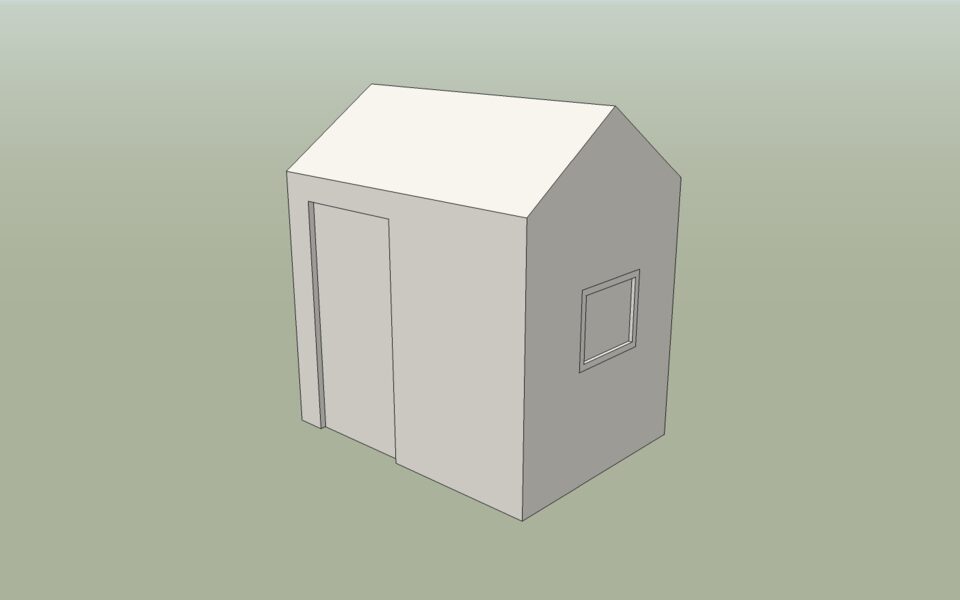
Offset copies the outline of a face at a constant distance, inwards or outwards. Use it for frames, rims, kerbs, borders and wall thicknesses.
A planter for the patio
Now a tapered planter, 50 cm square. You meet Scale here.
- Draw a
0.5m,0.5mrectangle near the house, and Push/Pull it up 0.5 m. - Select the top face. Choose Tools ▸ Scale (S). Grips appear around the selection.
- Hold Ctrl to scale about the centre, drag a corner grip outwards, type
1.2and press Enter. The top grows by 20 % and the sides lean outwards. - Offset the top face 4 cm inwards for the rim.
- Push the inner face down 0.4 m: the planter is hollow.
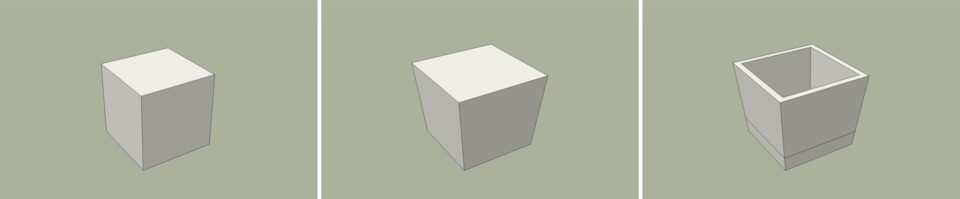
Scale takes a factor (1.2), a factor per axis (2,1,1), or a length. A negative factor mirrors.
A round pot with Follow Me
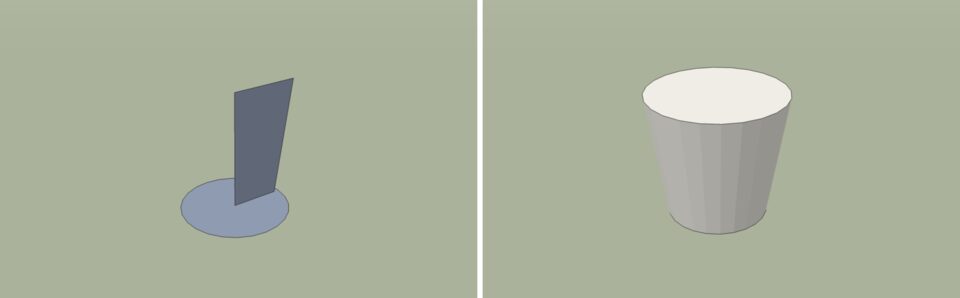
Follow Me sweeps a face along a path. With a circle as the path it makes a turned shape, like a pot or a column.
- Draw a circle on the ground (Draw ▸ Shapes ▸ Circle, C) with a radius of
0.2m. - Draw the pot's profile standing on the circle's centre, in a vertical plane: from the centre out to 18 cm, up and out to 25 cm at a height of 45 cm, and back to the axis. Lines that close the loop make a face.
- Select the circle's edge (a circle is one curve: one click selects it all).
- Choose Tools ▸ Follow Me and click the profile. It sweeps around the circle.
- Erase the circle face left on the ground.
Move, copy and arrays
Tools ▸ Move (M) moves the selection from one point to another. It is also how you copy:
- Press Ctrl (Option on macOS) once while moving to make a copy instead.
- Right after a copy, type
5xand press Enter: you get five copies, each the same distance further on. Type/5instead to spread five copies evenly between the original and the first copy. - You can still type a new distance afterwards; the array keeps its count.
Tools ▸ Rotate (Q) works the same way around a centre: click the centre, a starting direction and an end direction, or type an angle such as 45. With Ctrl it rotates a copy, and 6x makes six copies around the centre.