 Terrafold
Chapter 3
Drawing precisely
Terrafold models are exact: a 2.4 m wall is 2.4 m, not 2.398 m. You get there without a grid and without typing coordinates, through two things: inference, which snaps the pointer to what matters, and the Measurements box, which takes exact values.
Draw lines
- Choose Draw ▸ Lines ▸ Line, or press L.
- Click a start point.
- Move the pointer. A line follows it, and the Measurements box shows its length.
- Click to place the end point. The Line tool carries on from there; click again for the next segment.
- When the lines close a flat loop, a face appears and the tool stops. Press Escape to stop at any time.
To make a segment exactly 2 m long, move the pointer in the direction you want, type 2, and press Enter.
Inference: the pointer knows where it is
While you draw, Terrafold looks at what is under the pointer and snaps to it. A coloured marker and a tooltip tell you what it found.
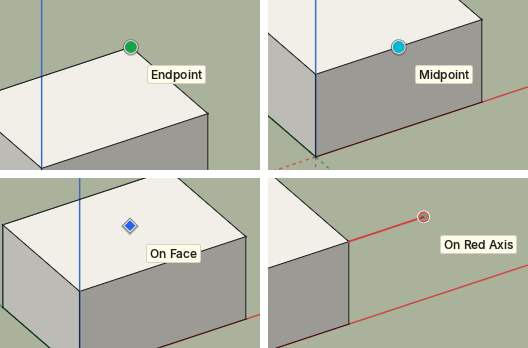
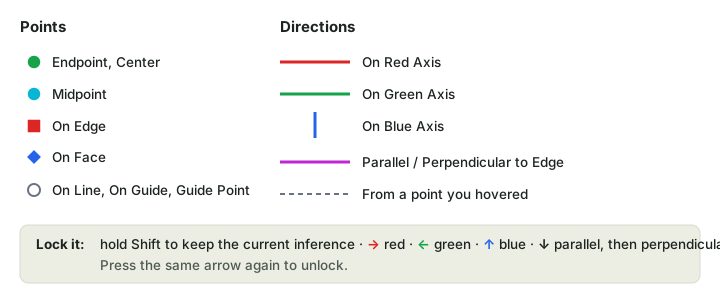
The most useful ones are:
- Endpoint (green) and Midpoint (cyan): the ends and middles of edges. Most of the time you start and end lines on these.
- On Edge and On Face: anywhere along an edge or on a face.
- On Red Axis, On Green Axis, On Blue Axis: the line runs parallel to an axis. The line itself takes the axis colour.
- Parallel to Edge and Perpendicular to Edge (magenta): hover over an edge first, then move in roughly the right direction.
Inference also works between things. Hover over a point for a moment, then move away along an axis: a dotted line shows that you are level with that point. That is how you draw a line that ends exactly in line with a corner elsewhere.
Lock a direction
Sometimes the inference you want is hard to keep while you move the pointer to where you want to click. Lock it:
- Hold Shift to keep the current inference while you move elsewhere.
- Press Right to lock the red axis, Left for green, Up for blue. Down locks parallel, then perpendicular, to the last edge you hovered. Press the same arrow again to unlock.
Draw rectangles
- Choose Draw ▸ Shapes ▸ Rectangle, or press R.
- Click the first corner.
- Move towards the opposite corner. The Measurements box shows the size as width and depth.
- Type both sizes separated by a comma, such as
2.4m,1.8m, and press Enter.
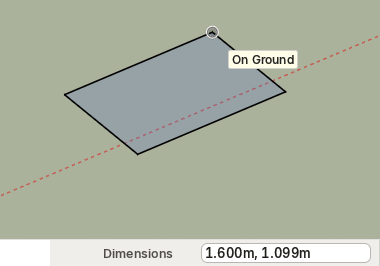
The direction of the pointer decides on which side of the first corner the rectangle goes; the numbers decide its size. A rectangle lies on the face you start it on, or on the ground. Hold Ctrl to draw it from its centre.
Measure and set out guides
Tools ▸ Tape Measure (T) measures and sets out.
- Click two points to measure the distance between them. The Measurements box shows it.
- Start on an edge and move away: a guide line parallel to the edge follows. Type a distance, such as
0.6, and press Enter to place it exactly that far away. - Start on a point and move: you get a guide point at the distance you type.
Guides are dashed construction lines. They are not part of the model's geometry, but the inference snaps to them, so they are perfect for setting out: put guides where things should go, then draw on them.
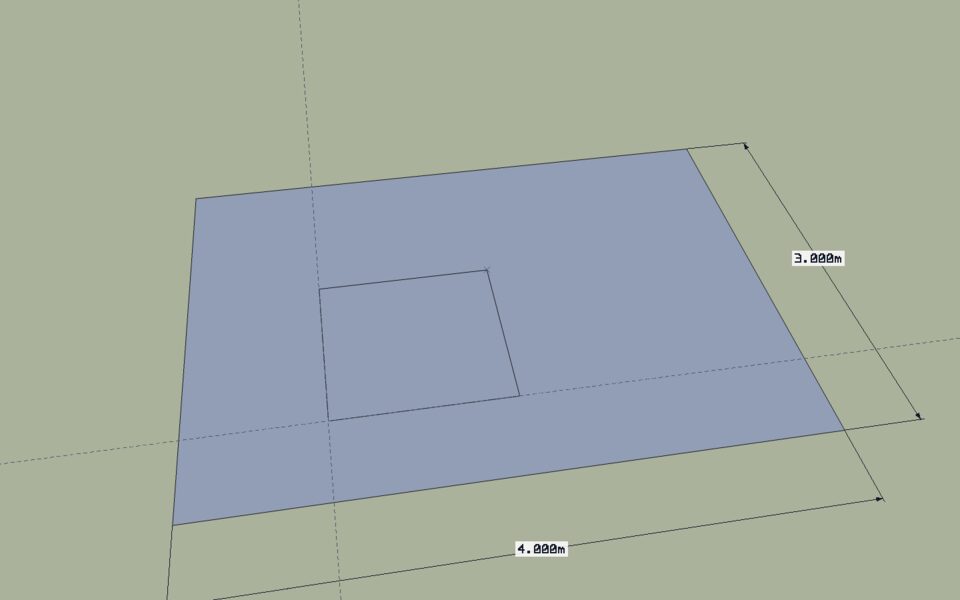
View ▸ Guides shows or hides guides; Edit ▸ Delete Guides removes them all when you are done.