 Terrafold
Chapter 2
Getting around
Before you build anything, learn the window and how to look around a model. You will orbit, pan and zoom hundreds of times in every session, so make it a habit to do it with the mouse, without thinking.
The window
Start Terrafold. If the Welcome to Terrafold window opens, choose New model. The first time, Terrafold also shows the end user licence agreement; read it and choose I Accept.
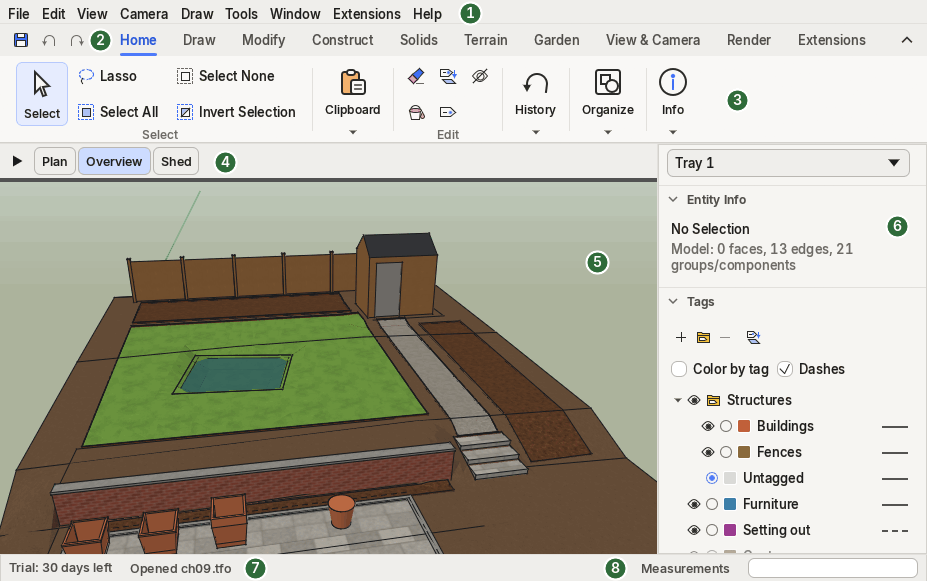
- The menu bar has every command, sorted by File, Edit, View, Camera, Draw, Tools, Window, Extensions and Help.
- The ribbon tabs: Home, Draw, Modify, Construct, Solids, Terrain, Garden, View & Camera, Render and Extensions. The small buttons on the left are the Quick Access bar (Save, Undo, Redo).
- The ribbon shows the commands of the chosen tab, in groups. Hover a button to see its name, its shortcut and, if it is greyed out, why.
- Scene tabs, when the model has scenes (chapter 6).
- The viewport: the model. The red, green and blue lines are the axes; they meet at the origin.
- The tray with panels such as Entity Info and Tags. Open more panels from Window ▸ Default Tray.
- The status bar says what the active tool expects next. Read it whenever you are unsure.
- The Measurements box shows lengths and angles while you work, and takes the values you type.
Context tabs and the collapsed ribbon
The ribbon changes with what you do. Select a group and a Group tab appears at the end of the strip; select terrain and you get Terrain tools; start a tool with options and an options tab shows them as toggles. These are context tabs: they appear when they apply and disappear afterwards.

When you want more room for the model, collapse the ribbon: double-click a tab, click the chevron at the right of the tab strip, or press Ctrl + F1. Only the tabs stay; click one to show its commands over the viewport.

Look around
You need three movements: orbit (turn around the model), pan (slide sideways) and zoom (move closer).
| Action | With the mouse | Tool and key |
|---|---|---|
| Orbit | drag with the middle button (the scroll wheel) | Camera ▸ Orbit, O |
| Pan | Shift + drag with the middle button | Camera ▸ Pan, H |
| Zoom | scroll the wheel; it zooms towards the pointer | Camera ▸ Zoom, Z |
| Recentre | double-click with the middle button on a point | |
| See everything | Camera ▸ Zoom Extents, Shift + Z |
Orbiting with the middle button works while another tool is active: you can turn the model half-way through drawing a line and carry on. That is why the mouse is the best way to navigate.
On a trackpad, pinch to zoom, drag with two fingers to orbit, and hold Shift while dragging with two fingers to pan.
Standard views
Camera ▸ Standard Views has Top, Bottom, Front, Back, Left, Right and Iso. For drawings, combine them with Camera ▸ Parallel Projection, which removes the perspective so that parallel lines stay parallel and lengths can be compared. Camera ▸ Perspective brings the perspective back.
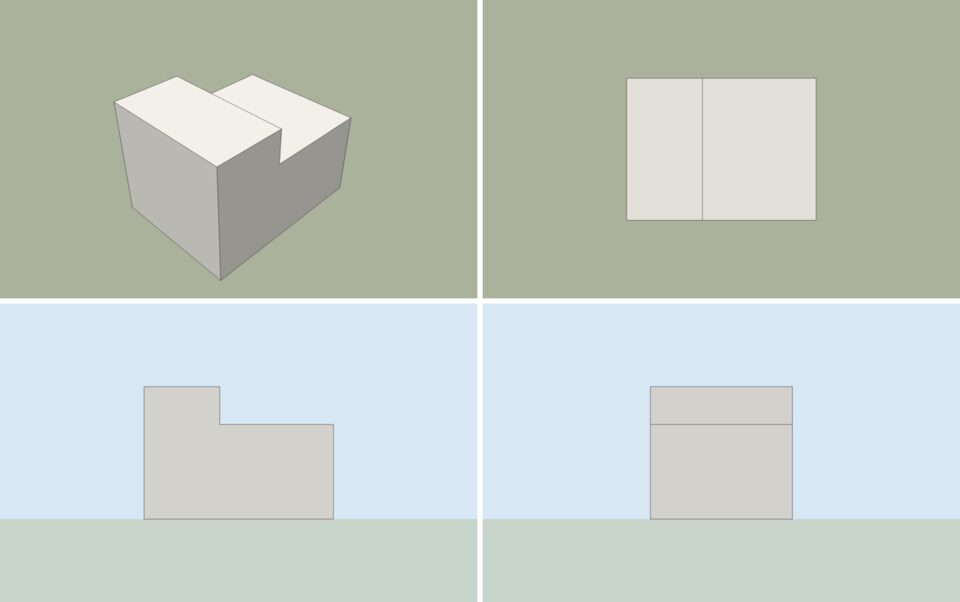
Camera ▸ Previous goes back to the view you had before, like the back button of a browser.
Units and the template
Each model has its own units. Open Window ▸ Model Info to see and change them: metres, centimetres, millimetres, feet or inches, and the precision Terrafold shows. You can always type a value in another unit (250mm, 8'): Terrafold converts it.
New models take their units from Window ▸ Preferences ▸ Template. If you always work in one unit, or always start with the same tags and styles, set up a model the way you like it and save it with File ▸ Save As Template. Choose it in Preferences ▸ Template to make it the default for new models.