 Terrafold
Chapter 11
Seeing the design
A garden design has to convince someone: a client, a neighbour, yourself. This chapter turns the model into pictures: views from where people will stand, a photoreal render, the design matched into a photograph of the real site, and an animation through the scenes.
Viewpoints
Good presentation views are eye-level views from where people will be: the back door, the patio, the far end of the lawn. Use Camera ▸ Position Camera to stand at a point at eye height, and Camera ▸ Look Around to turn your head. Camera ▸ Field of View widens or narrows the lens. Save each view as a scene (chapter 6).
Photoreal renders
Terrafold has a built-in path tracer: it follows the light from the sun and the sky as it bounces around the scene, so materials, shadows and reflections look real.
- View ▸ Path Traced Preview turns the viewport into a render that sharpens while the camera stands still. Use it to judge light and materials as you work.
- Window ▸ Render… makes a final image. Choose the Quality (Draft, Good or Best), the Size, and optionally Depth of field, then press Render. Save PNG… saves the image.
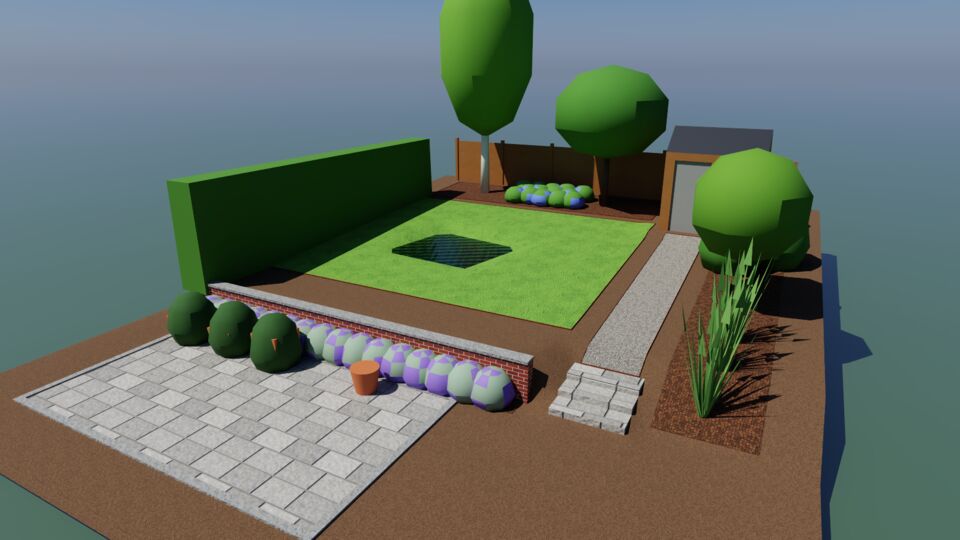
The Environment panel sets the light: a physical sky that follows the shadow settings, a single colour, or an HDRI panorama, with the exposure and tone mapping. Plants render in their colours for the garden time you have set: render the same scene in May and October for two very different pictures.
Match Photo
Camera ▸ Match New Photo… puts a photograph of the site behind the model and works out where the camera stood. You drag two pairs of lines onto edges in the photo that you know are horizontal and at right angles to each other, such as the walls of a house or the edges of paving. Where each pair meets is a vanishing point; from the two vanishing points Terrafold finds the camera.
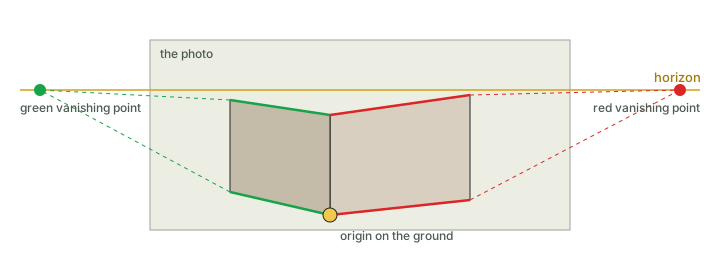
- Choose Camera ▸ Match New Photo… and pick a PNG or JPEG.
- Drag the ends of the two red lines onto edges that run along one direction, and the two green lines onto edges at right angles to them. Keep each pair far apart.
- Drag the yellow origin to a ground point where the two directions meet.
- In the Match Photo panel, set the scale: choose an axis, type a length you know (
4m), press Set and drag the white handle to the far end of that length. - Press Done. The photo is stored with a new scene.
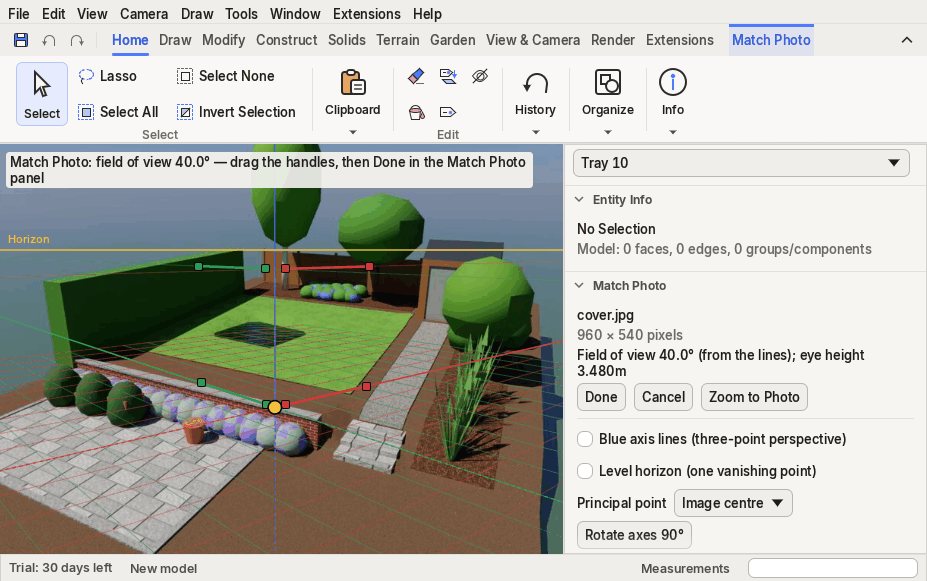
Now model in the photo's perspective: draw the new patio where it will be, and go back to the photo's scene to see it in place. Project Textures from Photo paints selected faces with the part of the photo behind them, a quick way to give a model of an existing building its real facade.
Images and animations
- File ▸ Export ▸ 2D Graphic… saves the current view, in the current style, as a PNG.
- File ▸ Export ▸ Section Slice… saves a section cut as an SVG drawing (see Tools ▸ Section Plane).
- View ▸ Animation ▸ Play moves smoothly from scene to scene. File ▸ Export ▸ Animation… saves it as a numbered series of PNG frames, which any video editor turns into a film. Set the transition and pause times in View ▸ Animation ▸ Settings.